
Logic Board Corrosion Case Study That Saved Data
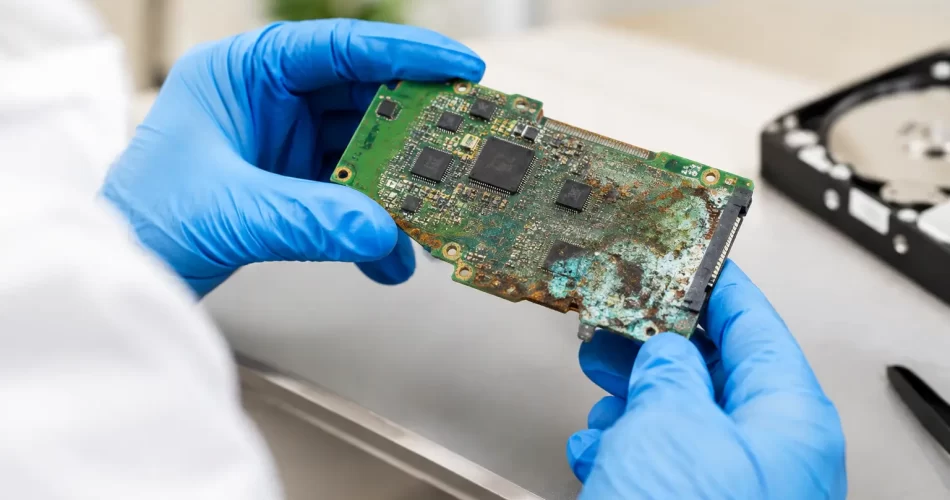
A coffee spill can look harmless after a quick wipe-down. In this logic board corrosion case study, the device still switched on, charged briefly and gave its owner false confidence – until it began restarting, refusing to detect the internal drive and shutting down without warning. The real problem was not the liquid on the keyboard. It was the corrosion already developing underneath the board.
For a Darwin professional with work files, client messages and photos stored locally, waiting for the device to fail completely was not an option. The priority was clear: assess the damage properly, protect the data where possible, and avoid paying for a replacement before knowing whether a board-level repair could save the machine.
The device: working, then failing fast
The customer brought in a water-damaged MacBook two days after a drink had been spilled near the keyboard. It had initially powered on after drying overnight. By the next morning, the trackpad was inconsistent, the battery percentage was jumping and the laptop would only boot intermittently.
That delay matters. Liquid damage is rarely a single-event fault. Once moisture reaches the logic board, it can carry contaminants into connectors, under chips and around power rails. Even when the visible liquid has evaporated, corrosion can continue reacting with metal contacts. Darwin’s heat and humidity can make a marginal device deteriorate faster.
A device that turns on is not necessarily safe to keep using. Every charging attempt can feed power through compromised components. Every restart can turn a repairable short into a failed chip or damaged data pathway.
Why logic board corrosion is different
A screen replacement is usually a contained job. A corroded logic board is not. The damage may sit in one small area, or it may affect several circuits with completely different jobs: charging, battery communication, display output, USB-C detection, storage access or power management.
The customer had already tried the common fixes. They had left the laptop open to dry and tested another charger. Neither addresses mineral residue or oxidation. Rice does not remove corrosion, and blasting ports with heat can push moisture deeper or damage heat-sensitive components.
The first step was to stop further testing and inspect the board under magnification. This showed residue around a power-management area and oxidation near a connector associated with charging and system power. There was also evidence that liquid had travelled beyond the initial spill point. That is normal. Liquid follows gravity, capillary action and cable routes rather than staying where it lands.
Logic board corrosion case study: diagnosis before repair
A proper corrosion repair starts with diagnosis, not a parts quote. On this MacBook, the board was removed and inspected for discolouration, damaged pads, broken traces and corrosion under component edges. The affected zones were then cleaned with electronics-safe methods to expose the actual condition of the board.
Cleaning is essential, but it is not always the repair. Once corrosion has eaten into a solder joint or track, the connection may still fail even when the board looks clean. That is where board-level testing and micro-soldering matter.
Technicians checked for shorts and abnormal readings on relevant power lines before applying power. This controlled approach reduces the risk of causing more damage during diagnosis. The board was not simply plugged in repeatedly to see whether it would behave.
The test results pointed to a damaged component in the power circuit and a weakened connection in the affected area. The charging fault, random shutdowns and unstable boot behaviour were symptoms of the same underlying issue: the board could not maintain clean, reliable power.
The repair: clean, rebuild, test
The repair involved removing the damaged component, treating the affected area, restoring the compromised connection and fitting a replacement component where required. This is precise work. Logic boards use tiny pads, tightly packed circuits and heat-sensitive chips. Too much heat, poor alignment or a lifted pad can turn a recoverable fault into a much larger repair.
After micro-soldering, the board was tested again before it went back into the laptop. The machine needed to charge normally, start consistently and remain stable under use. A successful boot alone is not enough. A device can appear fixed for five minutes, then fail once it draws more power, warms up or reconnects to Wi-Fi and storage.
In this case, the MacBook powered up reliably after repair. The internal storage became accessible, allowing the customer to confirm their key files were intact. The laptop then completed charging and stability checks before collection.
That result is the best-case outcome, but it is not a promise every water-damaged device can support. Liquid can destroy storage chips, damage multiple power rails or corrode board layers that cannot be rebuilt economically. The value of early diagnosis is finding out which situation you are dealing with before replacing major parts or writing the device off.
Data recovery changes the decision
For many customers, the device itself is replaceable. The data is not. University assignments, business documents, family photos, accounting files and project folders often live on a laptop that has never been backed up properly.
With newer devices, storage may be integrated with the logic board rather than sitting on a removable drive. If the board will not power on, simply taking out a hard drive may not be possible. Restoring enough board function to access the data can be the most practical recovery route.
That changes the repair conversation. If the laptop is older and needs extensive work, a full repair may not make financial sense. But a targeted board repair to recover critical files may still be worthwhile. It depends on the extent of corrosion, the device model, the condition of the storage system and how urgently the files are needed.
In this case, the customer chose to prioritise data access and a stable return to work. Once the files were confirmed, they could make a calm decision about backups and future device plans rather than making one under pressure.
What to do after a spill
The fastest action after liquid damage is usually the cheapest one. Switch the device off. Disconnect charging cables and accessories. Do not keep testing it, do not charge it and do not rely on a bag of rice.
If it is a laptop, avoid turning it upside down aggressively or pressing keys repeatedly. Place it in a position that limits further spread where practical, then arrange a professional assessment as soon as possible. The goal is to prevent power from meeting moisture and corrosion, not to prove the device still works.
Phones and tablets need the same caution. A charging alert, muffled speaker, foggy camera, boot loop or sudden battery drain after water exposure can all point to internal damage. Even a device rated for water resistance can fail after age, impact damage or a weakened seal.
When board-level repair is the right move
Logic board repair is worth considering when the device has important data, is otherwise in good condition or has a fault that is isolated to a repairable circuit. It is also often the sensible option when the alternative is an expensive full-device replacement.
There are limits. Severe corrosion, long-term liquid exposure and damage across multiple board layers can make repair uncertain or uneconomical. A professional technician should explain the likely path, the risks and whether data recovery is realistic before proceeding.
At iSmashed, board-level diagnostics and micro-soldering are used for faults that ordinary parts swapping cannot solve, including water damage, charging failures, boot loops and no-power issues. The aim is straightforward: give you a clear answer quickly, then carry out the repair that makes sense for your device and budget.
If your device has been exposed to liquid, treat a brief recovery as a warning, not proof that it is fine. Power it down, keep it off charge and get it assessed before corrosion turns a small fault into lost data and a bigger bill.
How to Fix Phone Overheating Without Risking Damage
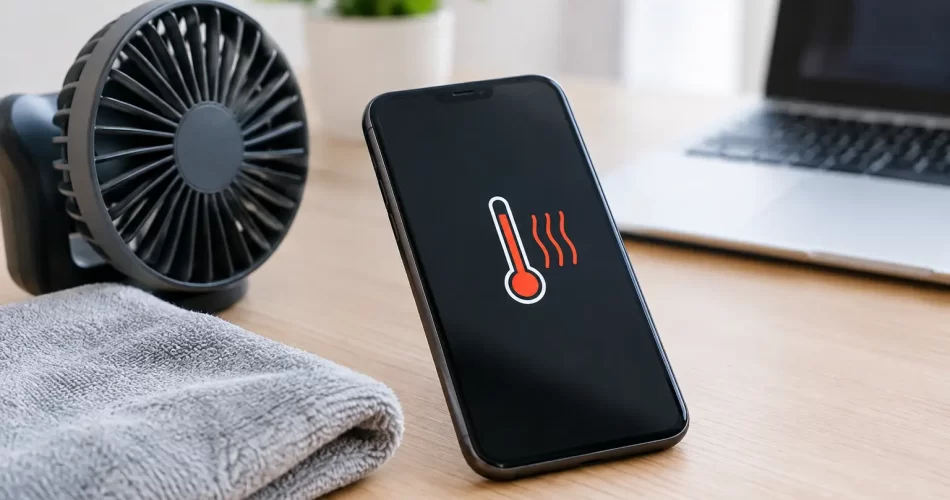
Your phone is too hot to hold, the battery is dropping fast, and it has chosen the middle of a work shift, trip or school day to do it. Before you try to fix phone overheating with a freezer, wet cloth or random app, stop. Heat can be a normal response to demanding use, but it can also be an early warning of a failing battery, damaged charging system or logic board fault.
A phone that overheats once while navigating in the Darwin heat is different from one that becomes hot every time it charges or sits idle. The key is knowing which is which, then taking the right action before heat turns into battery damage, shutdowns or lost data.
First, cool the phone down safely
If the handset is hot enough to be uncomfortable, disconnect the charger and remove its case. Turn the screen off, close any demanding apps, and move it into a cool, shaded indoor spot. If it is extremely hot, power it down for 15 to 30 minutes.
Do not put it in a fridge, freezer or directly under cold running air. Sudden temperature changes can cause condensation inside the device, creating a second problem: liquid damage. Do not place it under a pillow, in a bag or on a car dashboard either. Heat needs somewhere to escape.
If you notice any of the following, stop using and charging the phone immediately:
- the screen or back cover is lifting or separating
- there is a chemical or sweet smell coming from the device
- the phone is swelling, hissing, smoking or too hot to touch
- it continues heating up while switched off
A swollen lithium-ion battery is not a DIY repair. Keep the device away from flammable materials, avoid pressing the screen or back glass down, and arrange professional assessment as soon as possible.
Why phones overheat in Darwin
Darwin’s heat and humidity can push a healthy phone beyond its comfortable operating temperature quickly. Direct sunlight, a hot car and outdoor navigation are common triggers. So are video calls, gaming, 4K recording, mobile hotspot use and poor signal areas where the phone works harder to stay connected.
That does not automatically mean the handset is faulty. If it cools down after you stop the demanding task and move out of the heat, the issue may be environmental. A thick case can trap more warmth, particularly during wireless charging or long gaming sessions, so taking it off can help.
Repeated overheating is different. A phone that gets hot on the lounge room table, during light messaging, or every time it is plugged in needs closer attention. Heat is often a symptom, not the actual fault.
Common causes of phone overheating
Charging faults and poor-quality accessories
A damaged cable, worn adapter or cheap unregulated charger can deliver inconsistent power and create excess heat. Dirt, pocket lint or corrosion in the charge port can also cause poor contact. The phone may repeatedly connect and disconnect, charge slowly, or become noticeably hot around the bottom edge.
Use a known-good, reputable charger and cable that suit your model. Check the port visually with a light, but do not force metal tools into it. A bent charge-port pin or liquid-damaged connector can require a proper repair, not more cleaning.
Wireless charging creates some warmth by design, especially with a case fitted. It should not make the device painfully hot or trigger constant temperature warnings. If it does, stop using the pad until the handset and charger have been checked.
A failing or damaged battery
Phone batteries wear out. As they age, their ability to hold and deliver power declines, which can increase heat under load. A device that loses charge quickly, shuts down at 20 or 30 per cent, gets hot while charging, or has a lifting screen may have a battery issue.
Battery condition can also worsen after a drop, water exposure or previous low-quality repair. Replacing a worn battery early can prevent further stress on the screen, charging circuit and logic board. Waiting until the battery swells risks cracking the display or back glass from the inside.
Apps, updates and background activity
An app stuck in a loop can keep the processor, GPS, camera or mobile data active long after you finish using it. This often happens after an operating-system update, an app update or a corrupted installation. Check your battery-use screen to see whether one app is consuming an unusual amount of power.
Close the app, update it, or uninstall and reinstall it if the problem began recently. Restart the handset and make sure the operating system is current. If the phone overheats only during one particular game, social app or video call platform, reducing graphics settings or limiting use may be the realistic fix.
Be cautious with so-called phone cooler and battery saver apps. They rarely repair a hardware issue. Some run continuously in the background and add to the load they claim to reduce.
Weak signal and network strain
When reception is poor, your phone repeatedly searches for a stronger connection. This can drain the battery and generate heat, especially while streaming, uploading photos or using hotspot. Test the device in a location with reliable Wi-Fi or better mobile reception.
If the heating occurs only in one area, signal conditions may be the cause. If it happens everywhere and the phone also drops service, shows no signal or struggles to find a network after a fall or water exposure, the fault could be with the antenna system or board-level circuitry.
Water damage and logic board faults
Liquid damage does not always make a phone fail straight away. Moisture can corrode connectors and components over days or weeks, leading to abnormal power draw, boot loops, charging issues and heat. Even a phone labelled water-resistant is not waterproof, particularly once it has been dropped, opened or aged.
Overheating after a liquid incident needs professional diagnostics. Charging a wet or corroded device can turn a recoverable issue into a serious logic board failure. If important photos, work files or messages are on the phone, avoid factory resetting it before a data recovery assessment.
Steps that can fix phone overheating at home
Once the device is cool and there are no signs of swelling or physical damage, work through the simple checks. Restart it first. Then update the operating system and high-use apps, remove a recently installed app if the timing matches, and check battery usage for unusual activity.
Try charging with a different quality cable and adapter. Charge in a ventilated indoor area, not in direct sun, under bedding or inside a vehicle. If the phone gets hot while fast charging, test a standard charger where supported. Fast charging naturally produces more heat, but it should not produce persistent warnings or extreme temperatures.
Reduce the workload for a day or two. Turn off hotspot, Bluetooth, GPS and background refresh when you do not need them. Lower screen brightness, avoid recording long videos outdoors, and download maps or media on Wi-Fi before travelling. These measures will not cure a failed component, but they can tell you whether demand is the trigger.
Back up your data while the phone is stable. Overheating can lead to unexpected shutdowns, and repeated shutdowns increase the chance of file corruption or a device that will not boot normally.
When to book a repair
You need more than settings changes if the phone overheats when idle, heats up during every charge, drains rapidly after a battery replacement, has been exposed to water, or displays a temperature warning repeatedly. The same applies if it cycles on and off, will not charge properly, or becomes hot in one specific area such as near the camera, charging port or motherboard.
A proper assessment checks more than battery health. It may involve testing the charge port, power-management circuit, wireless charging assembly, camera module and logic board for abnormal current draw. On advanced faults, micro-soldering and board-level diagnostics can be the difference between replacing a device and recovering it.
For Darwin customers who need their phone back quickly, iSmashed can assess overheating faults across Apple and Android devices, from straightforward battery and charge-port repairs to water-damage treatment and logic board repair. Many common repairs can be completed quickly, with a clear 3-month parts warranty on eligible work.
Treat repeated heat as a reason to act, not something to live with. A cool phone is safer, lasts longer and is far less likely to let you down when you need it most.
What an iPad Screen Repair Review Should Cover
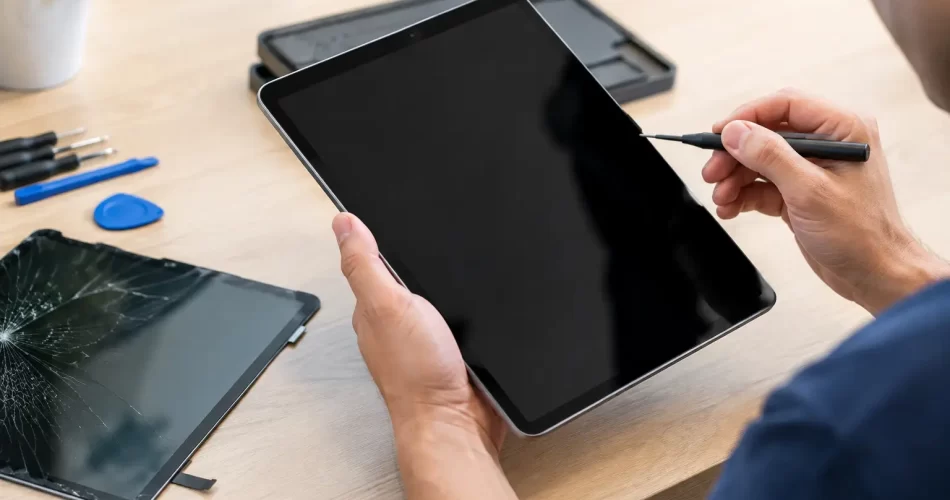
A cracked iPad screen is rarely just a cosmetic problem. Sharp glass can make it unsafe for children, touch can become unreliable, and a small corner crack can spread across the display after one more knock in a school bag or work vehicle. This iPad screen repair review explains what a proper repair should include, what separates a worthwhile quote from a cheap shortcut, and when the fault may be more than the screen.
What a good iPad screen repair review looks for
The first question is simple: what is actually broken? On some iPads, the outer glass and touch layer are separate from the LCD or OLED display. On others, the screen is a fully laminated assembly. That difference affects the repair method, part cost and turnaround time.
If the glass is cracked but the image is clear and touch works across the whole screen, a glass or digitiser repair may be possible on compatible models. If there are black patches, coloured lines, flickering, ink-like bleeding, no image, or dead touch areas, the display itself is likely damaged. In that case, replacing only the glass will not fix the problem.
A reliable technician should identify the model before quoting. “iPad” covers a large range, from older standard iPads through to iPad mini, iPad Air and iPad Pro models. Screen assemblies, adhesive layouts, frame construction and part availability vary widely. A quote without a model check may sound convenient, but it can quickly change once the device is opened.
Screen quality matters after the crack is gone
The best repair is not simply the one that makes the crack disappear. Your replacement screen needs to feel right in normal use: reading emails, joining video calls, signing forms, watching sport, editing photos or helping the kids with homework.
A quality assessment starts with the display. Brightness should be even, colours should look natural, and there should be no obvious dark corners, backlight bleed or distracting shadows. On models with higher-resolution displays, a poor-quality replacement can make text look soft and images less crisp. It may still function, but it will not feel like the iPad you relied on before the damage.
Touch response is equally important. The screen should register taps and swipes across every area, including the edges. Typing is a useful real-world test because it exposes missed presses, ghost touches and areas where the digitiser is inconsistent. If you use an Apple Pencil on a compatible iPad, that should also be checked after repair.
Cheap parts can be tempting when the damage has happened at the worst possible time. But lower-grade displays can bring weaker brightness, reduced viewing angles, slow touch response or poorer battery performance. The right option depends on the age and value of the iPad, how heavily you use it, and whether it is mainly used for basic streaming or daily work. A good repairer will explain the trade-off plainly rather than presenting every screen as identical.
Frame damage can change the job
A drop that cracks the screen can also bend the housing. Even a slight bend around the edge can prevent a new screen from sitting flat, leaving a raised corner or putting pressure back onto the replacement display. That is why an iPad should be inspected beyond the obvious broken glass.
Frame correction may be required before fitting the screen. In more serious cases, the housing may need replacement. This can add cost and time, but ignoring it is a false economy. A screen fitted onto a bent frame has a greater chance of lifting, cracking again or developing touch problems.
Testing should happen before and after repair
A proper iPad screen repair is a diagnostic job as well as a parts replacement. The initial check should confirm whether the iPad powers on, charges, responds to touch, produces an image and has any signs of previous water exposure or battery swelling.
Battery swelling deserves particular attention. A swollen battery can push the screen up from inside the housing, creating a gap that looks like failed adhesive. Pressing it back down is not a fix. It needs to be assessed safely, and battery replacement may be necessary before the screen can be secured correctly.
After the repair, the technician should test the functions most likely to be affected by opening the device. That includes display brightness, touch across the panel, charging, cameras, speakers, microphones, Wi-Fi and Bluetooth where relevant. Home button or Touch ID functionality should also be considered on compatible models. Some parts are paired to the original device, so an experienced repairer will be upfront about what can and cannot be retained on a particular model.
For devices with no image after a drop, the issue may not be limited to the display. A damaged connector, backlight circuit, charging fault or logic board issue can produce similar symptoms. This is where board-level diagnostics and micro-soldering capability matter. Replacing a screen first may still be a sensible test, but it should not be sold as a guaranteed cure if the device shows signs of deeper impact damage.
Turnaround matters when the iPad is your workstation
For many Darwin customers, an iPad is not a spare device. It is used at school, on site, at home, at the counter or while travelling. Being without it for a week is not always realistic.
Many common iPad screen repairs can be completed quickly once the correct part is available. However, fast should not mean rushed. iPad screens are often strongly bonded to the frame, and opening them carelessly can damage cables, antennas, buttons or the housing. The best outcome is prompt repair with enough time for controlled removal, professional fitting and final testing.
Part availability is the main variable. Popular models are generally easier to support than less common, older or premium iPad Pro variants. Ask whether the required part is in stock and whether the quoted timeframe includes testing, not just installation. A clear answer gives you a far better idea of when you can get back to work or study.
Price should be clear, not suspiciously low
A low quote can be genuine, particularly for an older iPad with widely available parts. It can also leave out important details: display grade, frame work, adhesive, testing, warranty coverage or extra faults found after inspection.
Before approving an iPad screen repair, ask what screen is being fitted, whether the price includes labour and GST, and what happens if the frame is bent or the display fault is more extensive than expected. You do not need a technical lecture. You need a straightforward explanation of the likely repair, the possible complications and the final cost range.
For a device that holds work files, family photos or school material, it is also sensible to back up data if the iPad still works. Screen replacement should not ordinarily affect stored data, but damaged devices can have hidden faults. A backup removes one unnecessary risk before any repair begins.
Warranty is part of the repair, not an extra
A repair warranty gives you a practical path forward if a fitted part develops a fault. It should be clear how long it applies, what it covers and what it does not. Accidental damage after collection, liquid exposure and new impact damage are different from a defective replacement screen or a workmanship issue.
At iSmashed, repairs are backed by a clear 3-month parts warranty. That matters because a screen repair should give you confidence to use the device again, not leave you wondering whether you have paid for a temporary fix.
A warranty is also a sign that the repairer is prepared to stand behind the work. If the screen lifts, touch fails, or the display develops a fault that is not caused by another drop, you should know exactly where to go and what support is available.
When to repair and when to reconsider
Screen repair is usually worthwhile when the iPad is otherwise working well, still receives the software you need and suits how you use it. It is often far more cost-effective than replacing a newer iPad after a single drop.
The decision becomes less clear when the iPad has multiple faults: a failing battery, charging issues, severe housing damage, water damage or repeated rebooting. In that situation, ask for an honest assessment of the total repair cost rather than treating each fault in isolation. A professional diagnosis can prevent you from spending money on a screen when the logic board or battery is the more urgent problem.
Before you book, note the model, take a quick backup if possible, and describe every symptom – not only the visible crack. That gives the repairer the best chance of getting your iPad back in service quickly, properly and with no surprises.
Android Device Unlocking Guide for Darwin Users
A forgotten PIN at 6am, a phone asking for an old Google account after a reset, or a SIM showing “network locked” can stop a normal day cold. This Android device unlocking guide explains what each lock means, what you can safely try yourself, and when professional help is the faster option.
The first rule is simple: do not keep guessing. Repeated incorrect attempts can extend the wait time, trigger a wipe requirement on some devices, or make an already stressful data situation worse. The right fix depends on whether you are dealing with a screen lock, Google Factory Reset Protection, a carrier restriction, or a phone that is frozen and only looks locked.
Android Device Unlocking Guide: Identify the Lock First
Android phones use several different security controls, and they are often confused with one another. A phone can have more than one at the same time. Removing one does not automatically remove the others.
A screen lock is the PIN, password, pattern, fingerprint or face recognition used every day. This protects the contents of the handset. If you cannot remember the PIN or pattern, biometrics may still work briefly, but Android will eventually require the primary code again after a restart, security timer or update.
Google Factory Reset Protection, often called FRP, appears after a factory reset. The phone asks for a Google account that was previously signed in on that device. It is designed to stop a lost or stolen phone being reset and reused. If the screen asks for a previously synced Google email and password, this is the issue you are facing.
A network or carrier lock concerns the SIM service, not the screen. The phone may work perfectly with one provider but reject another SIM card. This is common with phones bought through a carrier plan, including some imported devices.
Finally, a software fault can mimic a lockout. A boot loop, failed update, corrupted operating system, damaged storage chip or water-damaged logic board may leave a device stuck on the logo, recovery screen or a repeating PIN prompt. That needs diagnosis, not more passcode attempts.
Before You Reset Anything, Protect What You Can
A factory reset is sometimes the only official route back into a phone with an unknown screen PIN. It also permanently removes locally stored photos, messages, downloads, app data and files that have not been backed up. Do not reset first and ask about recovery later.
Check whether your important material already exists elsewhere. Photos may be in Google Photos, contacts may be synced to your Google account, and documents may be saved in cloud storage, email attachments or a work platform. If the phone still accepts fingerprint or face recognition, use that short window to back up what you can before it asks for the PIN again.
If you know the Google account but not its password, recover the account from another trusted device before wiping the phone. You will need the correct account details after the reset. Trying to recover the account from the locked handset itself can be difficult, particularly when two-step verification sends a code to the same phone.
Before taking any action, have these details ready:
- The exact phone model, such as Samsung Galaxy S23, Google Pixel 7 or Oppo Reno model.
- The Android version if you can see it, plus any error message displayed on screen.
- The Google account email address previously used on the device.
- Proof of purchase, service account details or carrier paperwork where available.
Those details make the next step quicker, whether you are working with your carrier, the manufacturer or a repair technician.
If You Forgot the Screen PIN, Pattern or Password
There is no legitimate universal code that preserves access to a modern Android phone without the correct screen credentials. That is intentional. Android encryption ties your data to the screen lock, so a reset can restore use of the device but cannot reliably restore encrypted files that were not backed up.
Start by pausing and checking practical possibilities. A recent PIN change is a common cause of trouble, especially after setting up a new phone, changing a work security policy, or handing a device to a child. Do not use random combinations based on birthdays or old passcodes. If you are not confident, wait for the lock timer to end rather than escalating it.
Where the phone is still connected to a known Google account and internet service, official device management options may allow a remote erase. This returns the phone to its setup screen, but it is a wipe, not a way to retain local data. Afterward, you will still need to sign in with the Google account that was on the handset before the reset.
Some brands have their own account-based recovery features, but availability changes by model, Android version and security update. Treat any website or video promising a quick passcode removal with suspicion. Many rely on outdated security flaws, misleading downloads or methods that can leave the phone unusable.
Google FRP: What to Do When Setup Stops You
FRP is where legitimate ownership matters most. If you reset a Samsung, Pixel, Motorola, Xiaomi, Oppo or other Android phone and it asks for the previous Google account, enter that exact account. A different Google account, even one you currently use, will not satisfy the security check.
If you have forgotten the email address, check another device where you may be signed in, old account recovery messages, purchase records or your password manager. If you remember the email but not the password, use Google’s official account recovery process and follow the waiting periods it applies. Changing a password immediately before attempting device setup can occasionally trigger a security delay, so patience is often part of the process.
Do not pay for an FRP bypass on a device you cannot verify as yours. Apart from the legal and ethical problem, unofficial bypasses are unreliable and can block updates, break banking apps, compromise privacy or leave the device tied to someone else’s account. A reputable repair business will ask for proof of ownership and will not help defeat anti-theft protection.
If Your Android Is Locked to a Mobile Network
A network restriction has a different solution. Test the phone with a SIM from another Australian provider, if practical. If it accepts the SIM but has no signal, the issue may be APN settings, account status or coverage. If it clearly reports a network lock or asks for an unlock code, contact the original carrier.
Have the phone’s IMEI ready. You can usually find it on the original box, purchase paperwork, SIM tray on some models, or in the phone settings if you still have access. The carrier can confirm whether the handset is eligible for release and whether it has been reported lost, stolen or has an outstanding financial obligation. Only the carrier can reliably remove its own restriction.
Be cautious with third-party IMEI services. A cheap code that never arrives is frustrating. A code entered too many times can also hard-lock the network function and require more involved repair work.
When the Problem Is Actually a Fault
A phone that will not accept a known-correct PIN, reboots before you can enter it, loses touch response across part of the screen, or gets stuck at the Android logo may have a hardware or software fault. This is particularly common after a drop, liquid exposure, failed update or a low-quality previous repair.
For example, a damaged OLED display can show the lock screen while missing touch input in the exact area needed for your PIN. A weak battery can restart the phone repeatedly, forcing the primary passcode request each time. Water damage can affect the charge circuit, storage, display connector or logic board. What looks like a security problem can be a repairable failure mode.
Avoid repeatedly force-restarting a water-damaged handset or charging it if moisture may still be inside. Switch it off if possible and arrange assessment quickly. Corrosion spreads over time, and early treatment gives data recovery work a better chance.
At iSmashed, we assess Android screen faults, charging failures, boot loops, water damage and board-level issues including micro-soldering and logic board repair. If the device is yours and you can provide the relevant account details, a proper diagnosis can separate a locked phone from a faulty one before you make a decision that wipes valuable data.
A Safer Way Back to Your Phone
Keep your Google account recovery details current, save a copy of important photos away from the handset, and store the device IMEI with your purchase records. These small steps turn a future lockout from a major disruption into an inconvenience.
If access is urgent for work, travel, school or family contact, bring the phone and proof of ownership rather than experimenting with unofficial fixes. A clear diagnosis is usually faster, safer and far less expensive than trying to recover from a failed reset or a damaged board.