
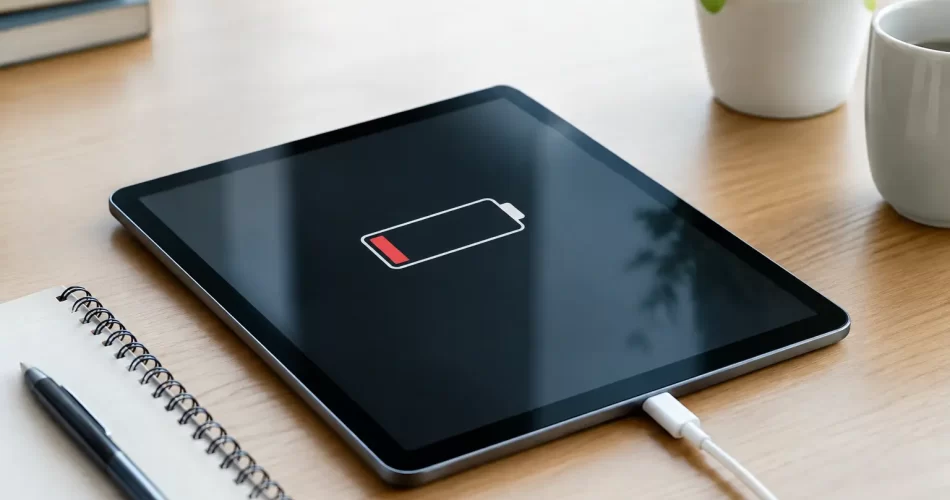
Best Solutions for Tablet Battery Drain That Work
A tablet that falls from 70% to 20% before lunch is not just annoying. It can interrupt a shift, derail study, leave children without their travel entertainment, or stop a small business from accessing bookings and invoices. The best solutions for tablet battery drain start by identifying whether the problem is normal power use, an ageing battery, a charging fault, or a deeper board-level issue.
A quick settings change can help in some cases. But when your iPad, Samsung tablet, Lenovo, or other Android device has become unreliable, repeatedly charging it harder is not a fix. It can hide the actual fault and make your day harder.
Best solutions for tablet battery drain: start with the cause
Battery drain is not one single fault. A tablet may lose power quickly because the screen is using too much energy, an app is running constantly in the background, the battery cells have worn out, or the tablet is struggling to maintain a stable connection to a charger.
Heat matters too. Darwin heat can expose a tired battery quickly, particularly if a tablet is left in a car, used outdoors, or charged under bedding or cushions. Lithium batteries do not perform well when overheated, and repeated heat exposure can shorten their useful life.
Start by noticing the pattern. Does the battery drop quickly only while streaming video? Does it lose power overnight in standby? Does it shut down at 30%? Does the percentage jump up or down after a restart? These details point to different solutions.
Reduce screen and background power use
The display is usually the biggest everyday power user. Lower the brightness to a comfortable level, shorten the auto-lock time, and turn off features you do not need, such as always-on location access, Bluetooth, mobile data, or background app refresh.
Check your battery settings to see which apps are using the most power. Video calls, navigation, games, social media, cloud backups and streaming services can drain a tablet fast. If one app is consuming an unusual amount of battery while you are not using it, update it, force close it, or reinstall it.
This is a sensible first step when the tablet is otherwise working normally. It is less likely to help when the device drains rapidly with the screen off, gets hot while idle, or turns itself off before reaching 0%.
Update the software, but watch for warning signs
An outdated operating system or faulty app can cause runaway battery use. Install available system and app updates, then restart the tablet. A restart clears temporary processes that may be stuck running in the background.
There is a trade-off. Major software updates can temporarily increase battery use while a tablet re-indexes files, syncs photos and completes background tasks. Give it a day or two after an update before judging battery life. If the drain continues or worsens, the issue may not be software at all.
For a device that has become slow, freezes, boot loops, or gets hot even in standby, do not keep factory resetting it without a backup plan. Those symptoms can point to a failing battery, charge circuit, or logic board fault. If important photos, work files or notes are stored on the tablet, protect that data before further troubleshooting.
When an old tablet battery needs replacement
Every rechargeable battery wears down. After hundreds of charge cycles, it cannot hold the same amount of energy as it did when new. You may notice shorter battery life first, followed by slow charging, random shutdowns, percentage readings that make no sense, or a tablet that only works properly while plugged in.
A battery replacement is often the most cost-effective repair when the tablet is in good condition and still receives the apps and updates you need. It restores practical day-to-day use without the cost and disruption of replacing the entire device.
Do not ignore physical warning signs. A lifting screen, raised back cover, gaps around the frame, or a tablet that rocks on a flat surface can indicate a swollen battery. Stop charging and using it. A swollen lithium battery needs professional handling, not pressure from a case or a DIY attempt to push the screen back down.
Tablet battery replacement is more involved than it looks. Many models use strong adhesive, delicate display cables and tightly packed internal components. A cheap battery fitted incorrectly can cause screen damage, charging faults or flex-cable damage. Quality parts and careful fitting matter.
Rule out charger and charge-port problems
A battery that appears to drain quickly may actually be failing to charge fully. If the cable only works at a certain angle, charging cuts in and out, or the device takes all night to gain a small percentage, inspect the charging setup before blaming the battery.
Test with a known-good cable and compatible wall charger. Remove visible lint carefully from the charge port, but never force metal objects into the connector. Bent pins, corrosion and compacted debris can all prevent a stable connection.
USB-C and Lightning ports can wear over time, especially on tablets used by children, in vehicles, on worksites or while travelling. A damaged port may need replacement. In other cases, the port is fine but the charging IC, battery connector or motherboard circuit is not delivering power correctly.
That distinction matters. Replacing a battery will not fix a faulty charge port or logic board. Proper diagnostics save money by repairing the actual failure instead of guessing.
Check for heat, water damage and hidden faults
A tablet that becomes hot during light use needs attention. Some warmth while charging or gaming is normal. Excessive heat, especially when the tablet is idle, can mean an app is stuck, the battery is deteriorating, or a component on the board is drawing too much current.
Water damage can also show up later as battery drain. A tablet may continue working after a spill, then develop corrosion around the charge port, battery connector or board components weeks later. Do not rely on rice. Turn the device off, avoid charging it, and have it assessed as soon as possible.
Advanced faults require more than a standard parts swap. Charge-management faults, shorted components and damaged power circuits can require micro-soldering and logic board repair. These repairs are particularly worthwhile when the tablet holds valuable data or is otherwise too good to replace.
Get professional help when the quick fixes fail
Book a professional assessment if your tablet loses power in standby, shuts down above 10%, overheats, has a swollen battery, will not charge consistently, or has been exposed to water. Bring the charger if possible, as it helps isolate whether the issue is the tablet, cable or power adaptor.
At iSmashed, tablet battery, charging and board-level faults can be diagnosed without sending you through a long manufacturer process. We repair Apple and Android tablets, including battery replacements, charge-port faults, water damage and complex logic board issues. Many common repairs can be completed quickly, with a clear 3-month parts warranty for added confidence.
If your tablet is still useful for work, school, family or travel, do not wait for a flat battery to make the decision for you. A proper diagnosis gives you a clear path forward, whether that is a simple setting change, a new battery, a port repair or specialist board-level work.