

Repair or Replace MacBook? Know the Better Fix
Your MacBook has stopped charging before a deadline, the screen has cracked in transit, or it has met a drink on the desk. The question is immediate: should you repair or replace MacBook hardware? A replacement can feel like the cleanest answer, but it can also mean spending thousands to solve a fault that is repairable for far less.
The right call depends on the model, the specific failure, the condition of the rest of the machine and what you need it to do every day. A MacBook with a healthy screen, keyboard and battery should not be written off because of one damaged USB-C port. Equally, pouring money into an ageing laptop with several major faults may only delay the next problem.
Repair or replace MacBook: start with the actual fault
Do not make the decision based on a symptom alone. A MacBook that will not turn on is not automatically a dead logic board. It may be a failed battery, damaged charging port, faulty display, liquid-affected component or a board-level power issue. Proper diagnostics identify the failed part before you commit to a repair or a new device.
Many common faults are worth repairing, particularly on a newer MacBook or one that otherwise performs well. These include a worn battery that no longer lasts through a shift, a cracked screen, loose hinges, keyboard damage, a failed trackpad, charging faults and fan-related overheating. Replacing the affected component can return a reliable work or study machine to service without the cost and disruption of moving to a new one.
Board-level problems need a more careful assessment. Logic board repair, micro-soldering and water-damage treatment can be excellent value when the machine is relatively recent or contains important data. They are also more specialised than a standard parts swap. A good repairer should explain the fault, the likely repair path, the price and any risk before work begins.
When water damage changes the calculation
Liquid damage is one of the few faults where speed matters as much as price. A MacBook can appear to work after a spill, then fail days later as corrosion develops around connectors or integrated circuits. Continuing to charge or use it can worsen the damage.
Switch it off, disconnect power and arrange an assessment promptly. Do not rely on rice, heat or repeated attempts to turn it on. Cleaning and board-level repair may save the device, but a technician also needs to assess whether the damage is contained or likely to create ongoing reliability issues. If the board cannot be economically restored, data recovery may still be possible.
Compare repair cost with replacement value, not just retail price
A simple rule helps: compare the repair quote with the real cost of replacing your MacBook with a suitable equivalent, not only the price of the newest model. If your current machine meets your needs, repairing a battery or display for a fraction of replacement cost is often sensible.
The calculation changes when the repair cost is high and the laptop is already showing other signs of age. A 2015 MacBook with a failing battery, unreliable keyboard, damaged screen and limited software support may not be a smart candidate for several major repairs at once. A newer machine with one expensive-looking fault can still be worth saving because it has years of useful life ahead.
Think beyond the invoice. Replacing a MacBook may involve accessories, adapters, software setup, moving files, signing back into accounts and time away from work. For a small business, even a few hours of downtime can cost more than a repair. If the device can be restored quickly and backed by a parts warranty, repair has a clear practical advantage.
Age matters, but performance matters more
MacBook age is useful context, not a final answer. Apple silicon models – including M1, M2 and later machines – remain capable for office work, study, creative tasks and everyday business use. If one has a cracked display or charging issue, repair is commonly the better value decision.
Older Intel models deserve a closer look. Some are still perfectly capable for browsing, documents, email, accounting software and light creative work. However, if performance is already frustrating, storage is permanently tight, macOS support is ending or the battery is poor, a major repair may not improve your overall experience.
Ask yourself whether the MacBook was doing the job before it failed. If it was fast enough, had enough storage and supported the software you rely on, fixing a single fault makes sense. If you had already planned to upgrade because it struggled with your workload, replacement may be the more honest solution.
Check for the faults that make replacement more sensible
One repair is different from a list of repairs. Replacement becomes more attractive when the MacBook has multiple independent problems, especially if they affect the core experience or point to broad wear.
Consider moving on if the machine has:
- repeated liquid damage or corrosion-related failures
- a costly logic board fault plus a failing battery or display
- serious physical chassis damage that prevents parts fitting correctly
- obsolete software support that affects security or required apps
- performance limitations that do not suit your current work
This is not a checklist that automatically condemns the laptop. A board repair may still be worthwhile where data is critical, a replacement is not immediately available or the MacBook has a strong resale value once fixed. The point is to avoid paying for a repair that only restores one part of a machine already near the end of its useful life.
Your data can be the deciding factor
A broken MacBook is often a data problem before it is a hardware problem. Photos, client documents, invoices, course files and account access may all be sitting on the internal storage. This is especially relevant for modern MacBooks with soldered storage, where removing the drive is not a simple option.
If the machine still starts, back up your data before deciding anything. Use a trusted external drive or cloud backup, and make sure the files actually open from the backup. If it will not start, do not keep forcing it through repeated boot attempts. A fault that looks like a dead screen, battery or charging circuit may be repairable enough to recover the data.
For liquid-damaged or board-failed devices, data recovery can influence the repair decision. Even if full restoration is not economical, targeted diagnostics and board-level work may be worthwhile to retrieve irreplaceable files. Explain the value of the data at the beginning so the repair path reflects what matters most.
Get a diagnosis before buying a replacement
Online fault guesses can be expensive. “No power” could be a cable, a battery, a USB-C charging circuit, a display issue or logic board failure. “My screen is black” could mean the MacBook is running normally but the backlight has failed. The correct diagnosis separates a quick, affordable repair from an unnecessary replacement purchase.
A professional assessment should give you clear options. You need to know what has failed, whether the issue is likely isolated, how much the repair will cost and whether there are signs of further damage. For Darwin customers, iSmashed can assess common MacBook faults as well as advanced micro-soldering and logic board issues, with repair recommendations based on value rather than guesswork.
A 3-month parts warranty also matters when comparing options. It gives you confidence that a repaired device has support behind it, rather than leaving you to absorb the risk of an untested fix.
Make the decision around your next 12 months
Do not judge the MacBook only by whether it can be revived today. Consider what you will need from it over the next year. A repaired M1 MacBook with a new battery may be a dependable work machine for years. An older model that needs a major board repair, battery and display may be better replaced before the next busy period.
If the repair is targeted, reasonably priced and restores a MacBook that still suits your needs, repair is usually the practical choice. If the fault is extensive, the device is unsupported or it was already holding you back, replacement stops the cycle of spending.
Before you decide, protect your data and get the fault properly diagnosed. A clear repair quote is often the fastest way to turn a stressful MacBook failure into a sensible next step.
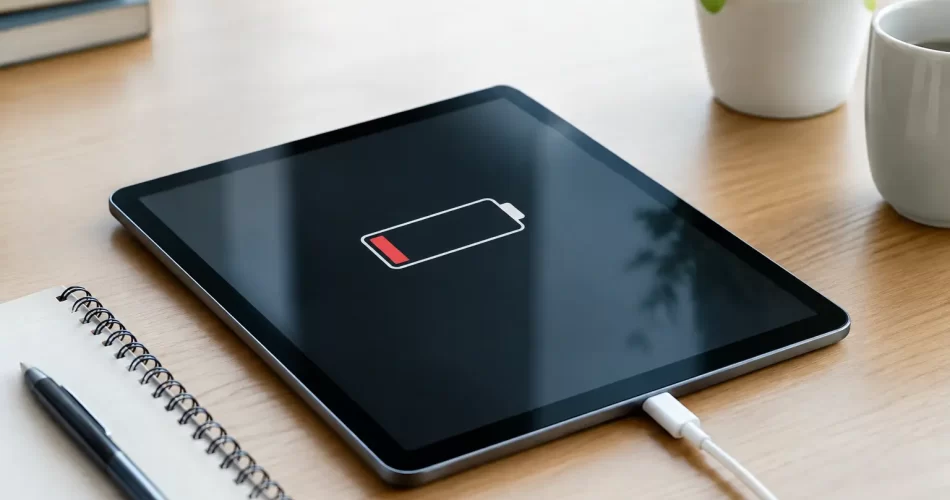
Best Solutions for Tablet Battery Drain That Work
A tablet that falls from 70% to 20% before lunch is not just annoying. It can interrupt a shift, derail study, leave children without their travel entertainment, or stop a small business from accessing bookings and invoices. The best solutions for tablet battery drain start by identifying whether the problem is normal power use, an ageing battery, a charging fault, or a deeper board-level issue.
A quick settings change can help in some cases. But when your iPad, Samsung tablet, Lenovo, or other Android device has become unreliable, repeatedly charging it harder is not a fix. It can hide the actual fault and make your day harder.
Best solutions for tablet battery drain: start with the cause
Battery drain is not one single fault. A tablet may lose power quickly because the screen is using too much energy, an app is running constantly in the background, the battery cells have worn out, or the tablet is struggling to maintain a stable connection to a charger.
Heat matters too. Darwin heat can expose a tired battery quickly, particularly if a tablet is left in a car, used outdoors, or charged under bedding or cushions. Lithium batteries do not perform well when overheated, and repeated heat exposure can shorten their useful life.
Start by noticing the pattern. Does the battery drop quickly only while streaming video? Does it lose power overnight in standby? Does it shut down at 30%? Does the percentage jump up or down after a restart? These details point to different solutions.
Reduce screen and background power use
The display is usually the biggest everyday power user. Lower the brightness to a comfortable level, shorten the auto-lock time, and turn off features you do not need, such as always-on location access, Bluetooth, mobile data, or background app refresh.
Check your battery settings to see which apps are using the most power. Video calls, navigation, games, social media, cloud backups and streaming services can drain a tablet fast. If one app is consuming an unusual amount of battery while you are not using it, update it, force close it, or reinstall it.
This is a sensible first step when the tablet is otherwise working normally. It is less likely to help when the device drains rapidly with the screen off, gets hot while idle, or turns itself off before reaching 0%.
Update the software, but watch for warning signs
An outdated operating system or faulty app can cause runaway battery use. Install available system and app updates, then restart the tablet. A restart clears temporary processes that may be stuck running in the background.
There is a trade-off. Major software updates can temporarily increase battery use while a tablet re-indexes files, syncs photos and completes background tasks. Give it a day or two after an update before judging battery life. If the drain continues or worsens, the issue may not be software at all.
For a device that has become slow, freezes, boot loops, or gets hot even in standby, do not keep factory resetting it without a backup plan. Those symptoms can point to a failing battery, charge circuit, or logic board fault. If important photos, work files or notes are stored on the tablet, protect that data before further troubleshooting.
When an old tablet battery needs replacement
Every rechargeable battery wears down. After hundreds of charge cycles, it cannot hold the same amount of energy as it did when new. You may notice shorter battery life first, followed by slow charging, random shutdowns, percentage readings that make no sense, or a tablet that only works properly while plugged in.
A battery replacement is often the most cost-effective repair when the tablet is in good condition and still receives the apps and updates you need. It restores practical day-to-day use without the cost and disruption of replacing the entire device.
Do not ignore physical warning signs. A lifting screen, raised back cover, gaps around the frame, or a tablet that rocks on a flat surface can indicate a swollen battery. Stop charging and using it. A swollen lithium battery needs professional handling, not pressure from a case or a DIY attempt to push the screen back down.
Tablet battery replacement is more involved than it looks. Many models use strong adhesive, delicate display cables and tightly packed internal components. A cheap battery fitted incorrectly can cause screen damage, charging faults or flex-cable damage. Quality parts and careful fitting matter.
Rule out charger and charge-port problems
A battery that appears to drain quickly may actually be failing to charge fully. If the cable only works at a certain angle, charging cuts in and out, or the device takes all night to gain a small percentage, inspect the charging setup before blaming the battery.
Test with a known-good cable and compatible wall charger. Remove visible lint carefully from the charge port, but never force metal objects into the connector. Bent pins, corrosion and compacted debris can all prevent a stable connection.
USB-C and Lightning ports can wear over time, especially on tablets used by children, in vehicles, on worksites or while travelling. A damaged port may need replacement. In other cases, the port is fine but the charging IC, battery connector or motherboard circuit is not delivering power correctly.
That distinction matters. Replacing a battery will not fix a faulty charge port or logic board. Proper diagnostics save money by repairing the actual failure instead of guessing.
Check for heat, water damage and hidden faults
A tablet that becomes hot during light use needs attention. Some warmth while charging or gaming is normal. Excessive heat, especially when the tablet is idle, can mean an app is stuck, the battery is deteriorating, or a component on the board is drawing too much current.
Water damage can also show up later as battery drain. A tablet may continue working after a spill, then develop corrosion around the charge port, battery connector or board components weeks later. Do not rely on rice. Turn the device off, avoid charging it, and have it assessed as soon as possible.
Advanced faults require more than a standard parts swap. Charge-management faults, shorted components and damaged power circuits can require micro-soldering and logic board repair. These repairs are particularly worthwhile when the tablet holds valuable data or is otherwise too good to replace.
Get professional help when the quick fixes fail
Book a professional assessment if your tablet loses power in standby, shuts down above 10%, overheats, has a swollen battery, will not charge consistently, or has been exposed to water. Bring the charger if possible, as it helps isolate whether the issue is the tablet, cable or power adaptor.
At iSmashed, tablet battery, charging and board-level faults can be diagnosed without sending you through a long manufacturer process. We repair Apple and Android tablets, including battery replacements, charge-port faults, water damage and complex logic board issues. Many common repairs can be completed quickly, with a clear 3-month parts warranty for added confidence.
If your tablet is still useful for work, school, family or travel, do not wait for a flat battery to make the decision for you. A proper diagnosis gives you a clear path forward, whether that is a simple setting change, a new battery, a port repair or specialist board-level work.
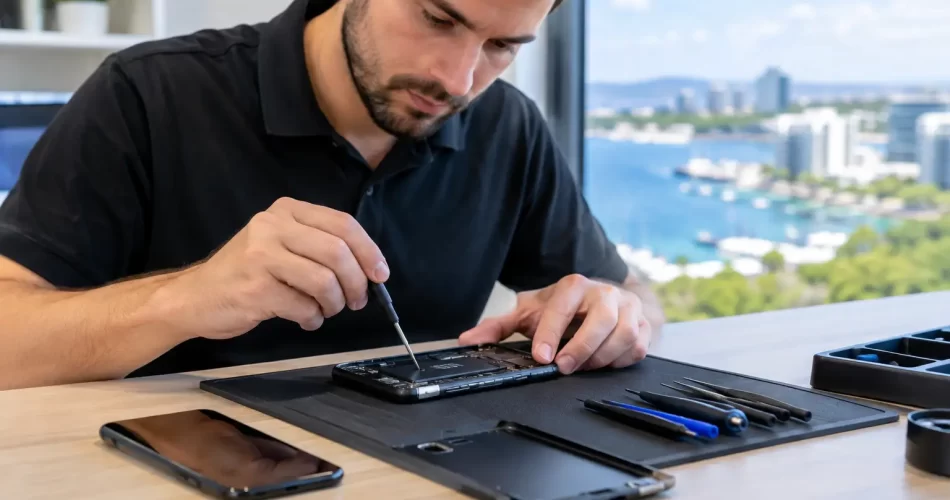
What Do Phone Repair Costs Look Like in Darwin?
A cracked screen before a shift, a phone that will not charge, or water damage after a wet Top End afternoon can stop your day quickly. Phone repair costs are usually the first question, but the useful answer is not a one-size-fits-all figure. The price depends on what has failed, which phone you own, whether damage has spread beyond the obvious problem, and what parts the job needs.
A proper quote should give you clarity before work starts. It should also account for the repair that actually fixes the fault, rather than a quick patch that leaves you back at the repair counter a week later.
What affects phone repair costs?
The same fault can cost very differently across devices. Replacing a screen on an older iPhone, a current Samsung flagship and a budget Android handset are three separate jobs, even when the glass looks equally smashed. Part availability, screen technology and the way each model is built all affect the final price.
Four factors matter most:
- Your device model: Newer flagship phones generally use more expensive parts. Foldable phones, curved displays and devices with integrated fingerprint sensors need extra care and specialised components.
- The type of damage: A screen crack may be limited to the front glass, or it may include dead pixels, touch failure, frame damage or a damaged display connector.
- Part quality and availability: Genuine, original-equipment quality and aftermarket parts can have different costs, performance and availability. The right option depends on the device, the fault and how you use it.
- The level of repair required: A battery replacement is different from a charge-port repair, and both are very different from micro-soldering on a logic board.
This is why a clear diagnosis matters. A phone that appears to need a new battery may actually have a failing charge port, power-management fault or liquid damage on the board. Replacing the battery first may not solve the problem and can add unnecessary cost.
Screen replacement costs: more than broken glass
Screen repairs are among the most common phone repairs in Darwin, but a cracked screen is not always a simple screen replacement. If the display still shows a clean image and touch works normally, the damage may be limited. If you see green lines, black blotches, flickering, ghost touches or no image at all, the display assembly has likely failed.
OLED screens, common on newer iPhones and premium Samsung devices, cost more than basic LCD panels. They produce deeper blacks, better brightness and smoother touch response, but they are also more expensive components. Cheap replacement screens can be tempting, particularly if you are trying to minimise the upfront price. The trade-off can be lower brightness, weaker touch response, reduced colour accuracy or poor durability.
A professional repair should also check the frame. A bent housing can prevent a replacement screen from sitting correctly, leave gaps for dust and moisture, or cause another screen to crack under pressure. If the frame needs attention, the quote should explain why.
Battery, charging and back-glass repair pricing
Battery repairs are usually a cost-effective way to extend a phone’s life. Common signs include rapid battery drain, unexpected shutdowns, overheating, swelling or a battery percentage that jumps around. A new battery can make an older phone reliable again, especially for work calls, school, navigation and banking.
However, not every power problem is a battery problem. If the phone only charges at a certain angle, charges slowly or will not connect to a computer, the charge port may be blocked, worn or damaged. Lint compacted inside a port is common. So are damaged pins, corrosion and broken flex cables. The repair cost depends on whether a careful clean is enough or whether the port assembly needs replacement.
Back-glass replacement varies widely by phone. On some models, the rear glass can be removed and replaced without disturbing major internal components. On others, it is bonded tightly to the housing and sits close to wireless charging coils, cameras and cables. The job takes more labour and carries more risk, so the price reflects that. If camera lenses are cracked too, have them checked at the same time. Moisture and dust can enter through those openings.
Water damage: why fast action can save money
Water-damaged phones are unpredictable. A phone may switch on after getting wet, then fail days later as corrosion develops under shields and connectors. Rice does not remove corrosion, and repeatedly charging a wet device can turn a manageable repair into board-level damage.
Switch the phone off if possible, do not charge it, and bring it in promptly. A technician can inspect for liquid indicators, disconnect the battery, clean affected areas and test critical circuits. The repair cost depends on how far moisture has travelled and whether it has damaged the screen, battery, cameras, charge system or logic board.
Data recovery can be especially valuable in these cases. If family photos, business contacts, notes or authentication apps are trapped on a phone that will not boot, the priority may be stabilising the board long enough to recover data rather than restoring every feature. That is a different job from a standard screen or battery replacement, and it should be quoted that way.
When phone repair costs involve micro-soldering
Some faults sit below the level of replaceable parts. Boot loops, no touch after a drop, no audio during calls, backlight failures, repeated restart issues and phones that will not power on can point to a logic-board fault. These repairs require diagnosis under magnification, schematic knowledge and micro-soldering equipment.
Board-level work can cost more than a standard repair because the fault must be identified before it can be repaired. It may involve tracing power lines, replacing a small integrated circuit, repairing torn pads or dealing with corrosion under shields. It is detailed work, but it can be the sensible option when the alternative is replacing an expensive phone or losing irreplaceable data.
It also depends on the phone’s value and condition. Repairing a three-year-old handset with a single board fault may be worthwhile. Repairing an older device with board damage, a weak battery, cracked glass and poor storage capacity may not be. A good repairer will explain the options plainly instead of pushing a repair that does not make financial sense.
How to compare repair quotes properly
The lowest quote is not automatically the best value. Ask what part is being used, whether the fault has been diagnosed, how long the repair is expected to take and what warranty applies to the replaced part. A quote that sounds cheap can become expensive if it excludes the actual issue, uses a poor-quality component or offers no support if the part fails.
You should also be wary of prices given without asking for your exact model. An iPhone 12 and iPhone 15 may look similar at a glance, but their parts and repair process are not the same. The same applies to Samsung Galaxy models, where screen assemblies and frame designs differ significantly across the range.
At iSmashed, the focus is on practical answers: identify the fault, explain the repair, provide a clear price and get suitable repairs completed quickly where possible. Many everyday screen, battery and charging repairs can be turned around in under an hour, while water damage, data recovery and logic-board work may need more diagnostic time. Repairs are backed by a clear 3-month parts warranty.
Is repair worth it or should you replace the phone?
Repair is often the better choice when the device is otherwise working well, still receives security updates and meets your daily needs. A screen or battery repair can cost far less than a replacement phone and avoids the hassle of transferring apps, accounts, photos and settings.
Replacement may make more sense when several expensive faults are present at once, the phone has become too slow for your work, or software support has ended. For small businesses, downtime also matters. A fast repair can be better value than spending hours setting up a new device while calls, bookings and customer messages go unanswered.
Before deciding, consider the total picture: the repair quote, the phone’s age, its storage, battery health and the value of the data on it. A cracked screen is inconvenient. Losing access to two-factor authentication, work contacts or years of photos can be much more costly.
The best next step is simple: get the device assessed before the fault worsens. A clear diagnosis gives you a real choice, whether that is a fast repair, data recovery or an honest recommendation to put your money towards a replacement.
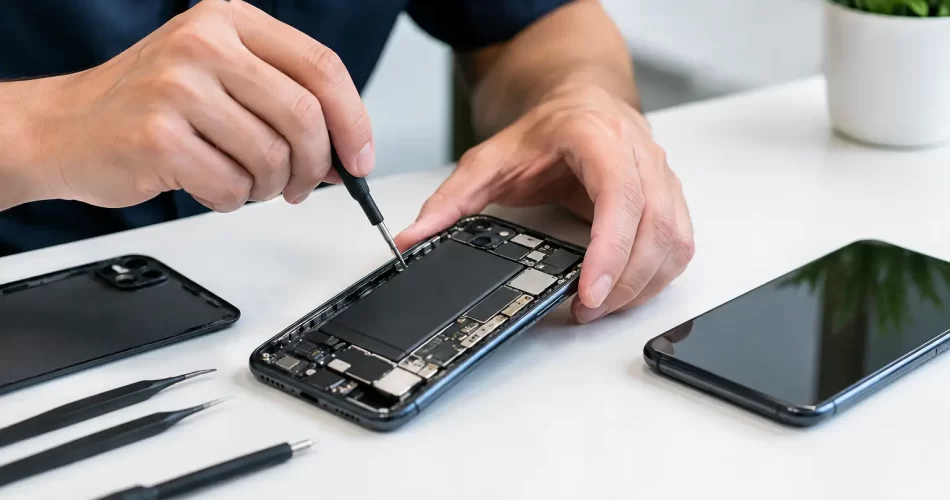
Android Repair Review: What a Good Fix Looks Like
A cracked Samsung screen before a shift, a Google Pixel stuck in a boot loop, or an Android phone that will not charge can stop the day quickly. This Android repair review explains what separates a proper repair from a short-term patch, so you can choose a service that gets your phone back to work without creating the next fault.
Android devices are not all built the same. Screen assemblies, battery layouts, charge ports, water-resistance seals and software behaviour vary sharply between Samsung Galaxy, Google Pixel, OPPO, Motorola and other models. A good repairer identifies the actual failure before quoting a fix. Replacing parts until something works is not diagnosis.
What an Android repair review should assess
The first test is simple: does the repairer listen to the symptoms? A phone that will not charge may have lint packed into the port, a worn charging cable, a damaged port, a failed battery or a logic board fault. Those issues need very different solutions and prices. A clear assessment protects you from paying for a replacement part that was never necessary.
The same applies to broken screens. A visible crack does not always mean the display itself has failed. If touch still responds and the image is clear, the repair may be straightforward. If the screen is black, flickering, showing green lines or reacting to touches by itself, the display assembly is likely damaged. On some models, the fingerprint sensor is integrated with the display and must be tested after installation.
A useful quote explains what is being repaired, what part quality is being used and whether the price includes fitting and testing. It should also make clear if a device needs further inspection before a final price can be confirmed. Water damage, previous repair attempts and bent frames can turn an apparently routine job into a more involved repair.
Fast turnaround matters, but testing matters too
Same-day Android repair is valuable when your phone handles your roster, banking, work calls, maps and family messages. For common screen, battery and charge-port jobs, a fast turnaround can be entirely reasonable. Many repairs can be completed in under an hour when the correct part is available and there is no hidden damage.
Speed should not mean skipping checks. After a screen replacement, the repairer should test touch response, brightness, cameras, proximity sensor, earpiece, loudspeaker, charging, mobile signal and fingerprint function where applicable. After a battery repair, they should confirm the phone charges normally and does not restart under load.
For busy Darwin customers, convenience is part of the repair quality too. An in-store option is useful when you are in the CBD, while a come-to-you service can make more sense if you are working, studying, caring for children or unable to leave the office. The best option depends on the job. Board-level faults and water-damaged devices may need workshop equipment and longer testing, while a standard screen replacement can often be handled much faster.
Android screen repairs: more than fitting new glass
A quality Android screen repair restores more than appearance. The replacement needs to sit flush, respond accurately across the full panel and display colours and brightness consistently. Cheap or poorly matched screens can look washed out, drain the battery faster, feel slow to touch or leave gaps around the frame.
Parts quality is a trade-off worth discussing openly. Premium display assemblies generally give the closest result to the original screen, particularly on OLED-equipped Samsung Galaxy and Google Pixel phones. Compatible options may reduce the upfront cost on suitable models, but may not match the original in brightness, refresh rate, colour accuracy or fingerprint performance. Neither choice is automatically wrong. The right choice is the one explained clearly before work begins.
Frame condition also matters. A phone dropped hard enough to crack the screen may have a bent housing. If that frame is not addressed, a replacement screen can sit under pressure and become more vulnerable to cracking. An experienced technician checks the frame rather than simply bonding a new panel over the problem.
Battery and charging faults need accurate diagnosis
A battery that drains early, overheats, shuts down at 20 per cent or takes hours to charge is frustrating, but the battery is not always the cause. Background software activity, a failing charge port, water exposure and a damaged charging flex can produce similar symptoms.
Battery health declines over time, especially in phones used heavily in heat. Darwin conditions can be tough on devices left in hot cars, used outdoors or charged under pillows overnight. A replacement battery can bring back reliable all-day use, but it should be fitted carefully and tested for normal charging behaviour afterwards.
Charge-port repairs need the same care. USB-C ports collect compacted dust and can wear from repeated cable movement. Sometimes professional cleaning is enough. If the port is loose, only charges at an angle or disconnects repeatedly, replacement may be needed. A proper repair also checks the cable, charger and charging circuit, because a new port will not fix a board-level charging fault.
Water damage: act early and avoid false fixes
If an Android phone has been exposed to water, turn it off if possible and do not plug it in. Charging a wet device can cause a short circuit that turns a recoverable issue into a failed motherboard. Do not rely on rice. It does not remove corrosion from connectors or components, and it can leave dust in the charge port.
Water damage needs inspection, internal cleaning and corrosion treatment as soon as practical. The outcome depends on what liquid entered, how long it remained inside and whether power was applied afterwards. Plain water is not harmless once minerals begin corroding contacts. Salt water, soft drink and pool water are more aggressive.
This is where advanced repair capability counts. If corrosion has affected the charging circuit, backlight circuit, audio IC or power-management components, the job may require microscope work and micro-soldering rather than a simple parts swap. There is no honest guarantee that every liquid-damaged phone can be saved, but early professional assessment gives the device and your data the best chance.
When an Android fault is really a logic board fault
Some failures point beyond the screen, battery or port. A phone that loops on the start-up logo, cannot detect a SIM, has no sound on calls, loses Wi-Fi, overheats while idle or will not power on may have a motherboard-level issue. Software problems can cause some of these symptoms too, which is why diagnosis comes first.
Board-level repair is especially valuable when the data on the phone matters. A factory reset may help a software fault, but it can erase photos, messages and files if they have not been backed up. If the phone will not boot and the data is important, ask about recovery options before authorising actions that could wipe it.
Micro-soldering and logic board repair are specialised work. They require controlled heat, proper tools, experience reading fault behaviour and careful testing. They are not always the cheapest route, and they are not always economical on an older handset. But when a newer premium Android contains essential business files or irreplaceable photos, a board repair can be a better value than replacing the phone and losing its contents.
Warranty and communication are part of the repair
A repair is not complete when the phone turns on at the counter. You need to know what happens if the replaced part develops a fault. A clear parts warranty gives practical reassurance and shows the repairer stands behind their workmanship. At iSmashed, eligible repair work is backed by a clear 3-month parts warranty, with advice available if something does not perform as expected.
Warranty terms should be realistic. They generally cover faults in the replacement part or fitting, not fresh impact damage, liquid exposure, misuse or unrelated faults that were already present. That is normal. What matters is that the terms are explained plainly, without vague promises or surprise exclusions.
Good communication also means being told if the repair uncovers an additional fault. For example, a phone with a cracked screen may also have a bent frame, failed front camera or damaged proximity sensor. You should be given the choice to proceed, pause or collect the device, with the costs set out clearly.
Before handing over your Android, back it up if you can, remove the SIM if preferred and make a note of any existing faults. Then choose a repairer that can explain the likely cause, the realistic options and the expected turnaround in plain language. The right fix is not just the fastest or lowest-priced one – it is the repair that gets your phone reliably back into your hands, with no guesswork attached.
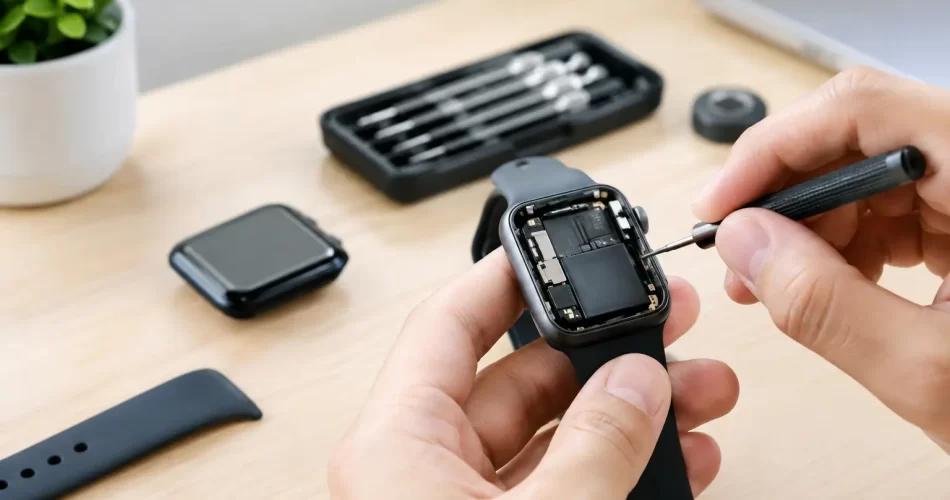
Guide to Apple Watch Repairs for Darwin Owners
A cracked Apple Watch screen before a long shift, a battery that dies before lunch, or a watch that will not charge can quickly turn a useful device into dead weight. This guide to Apple Watch repairs explains what can usually be fixed, what needs urgent attention, and when a professional assessment is the smarter move than replacing the whole watch.
Start by preventing further damage
If the display is cracked but still working, avoid pressing hard on the glass or wearing the watch during physical work. Apple Watch screens sit close to the display and touch layers underneath. A small crack can spread, allow moisture in, or become a sharp edge against your wrist.
For a watch that has been wet, remove it from the charger immediately. Do not use a hairdryer, put it in rice, or keep trying to power it on. Heat can damage the battery and internal seals, while repeated charging can turn minor corrosion into a logic board fault. Switch it off if possible and arrange an inspection as soon as you can.
If the back of the watch is lifting away from the case, stop wearing and charging it. This often points to a swollen battery. It is not a fault to ignore for another week, especially in Darwin heat. A swollen battery can damage the screen, flex cables and internal components as it expands.
Guide to Apple Watch repairs: common faults
Apple Watch models are compact, tightly sealed devices. That makes repairs more delicate than a standard phone screen replacement, but many common issues are still repairable with the right tools, parts and diagnosis.
Cracked, smashed or unresponsive screens
Screen damage is one of the most common Apple Watch faults. You may have a visible crack, black ink-like patches on the OLED display, flickering, dead touch areas, or a screen that has detached from the frame after an impact.
A screen replacement may be suitable if the watch still powers on and the underlying damage is limited to the display assembly. However, a hard impact can also affect the housing, force-touch components, battery or internal connectors. The right repair is based on what has actually failed, not just what is visible from the outside.
Repair quality matters here. The screen needs to sit correctly, with the housing cleaned and inspected before resealing. A cheap repair that leaves gaps around the display can lead to dust, moisture and a second repair bill.
Battery draining too quickly or lifting the screen
Apple Watch batteries lose capacity over time. A watch that once lasted all day may begin needing a top-up by mid-afternoon, especially if it is older, heavily used for workouts, or regularly exposed to heat.
Battery replacement can restore practical daily use when the battery is the actual cause. But fast drain is not always a battery problem. Background syncing, watchOS issues, a failing display, charging faults and board-level damage can all produce similar symptoms. If the watch becomes hot, restarts repeatedly, or the screen is lifting, it needs professional attention rather than another charging cycle.
Charging faults and magnetic charger issues
When an Apple Watch will not charge, check the simple causes first. Try a known-good cable and power adaptor, clean the rear charging surface gently with a dry microfibre cloth, and remove any case that stops the charger sitting flat.
If it still will not respond, the fault may be in the battery, charging circuit, charging coil or logic board. Some watches show the red lightning bolt but never progress, while others stay completely dead. These symptoms need diagnosis before parts are ordered. Replacing a battery will not solve a board-level charging fault.
Digital Crown, side button and speaker faults
A sticky Digital Crown can result from sweat, grime or dried residue around the mechanism. Do not force it. Excess pressure can damage the internal assembly and compromise the case seal.
Side buttons that do not click, speakers that sound muffled, microphones that cut out, or haptic feedback that has stopped working may be caused by debris, liquid exposure or a damaged flex cable. These are small components in a crowded device. Proper disassembly is essential to avoid tearing cables or causing damage to the display during opening.
Water damage and corrosion
Apple Watch water resistance is not permanent. Seals wear with age, impacts can weaken the housing, and prior repairs may affect resistance if the device has not been resealed correctly. Even models designed for swimming can suffer damage after a knock, a cracked screen or years of regular use.
Signs of liquid damage include a foggy display, random touch inputs, rapid battery drain, no power, speaker distortion and boot loops. Early treatment gives the best chance of saving the watch and any data still accessible on it. Corrosion can continue long after the outside feels dry, which is why a water-damaged watch should not be left in a drawer for months.
Stuck on the Apple logo or restarting repeatedly
A watch trapped on the Apple logo may have a software problem, but it can also indicate failing storage, battery instability or logic board damage. A force restart is reasonable to try once. If the problem returns, do not keep repeating it for days.
Advanced faults can require board-level diagnosis and micro-soldering rather than a standard replacement part. This is particularly relevant after water damage, a severe impact, failed charging attempts or an unsuccessful previous repair. A proper diagnosis separates a recoverable fault from a watch that is no longer economical to repair.
Repair or replace? The decision comes down to value
The newest Apple Watch is not automatically the best answer. If your watch has a damaged screen or worn battery but otherwise works well, repair can be the more affordable and less wasteful option. It also means less time setting up a replacement, reconnecting accounts and rebuilding your daily routine.
Replacement may make more sense where the case is badly bent, the logic board has extensive corrosion, multiple major components have failed, or the repair cost approaches the value of a newer model. Older models also have limits around software support and features, so it is worth considering how long you realistically plan to keep the device.
For many Darwin customers, the key question is downtime. If the watch is used for work notifications, shift alerts, fitness tracking or contactless payments, a quick repair with a clear warranty can be better value than waiting through a lengthy replacement process.
What a professional Apple Watch repair should include
Apple Watch repairs should start with fault testing, not a guess based on one symptom. A technician should check power behaviour, charging response, display function, touch input, housing damage and signs of liquid exposure before recommending a repair.
Ask what part is being replaced, whether the device has other damage, how long the repair is expected to take, and what warranty applies to the work. At iSmashed, eligible repair parts are backed by a clear 3-month warranty, giving you certainty after the repair rather than a vague promise at the counter.
Be realistic about water resistance after any repair. A carefully resealed watch is far better than one left with damaged adhesive or a loose display, but no repairer should promise that an opened device is identical to its original factory condition. Avoid swimming or deliberately submerging it unless you have been clearly advised otherwise.
Before handing your watch in
If the watch is still responsive, back it up through its paired iPhone where possible. Keep your iPhone available, as unpairing or re-pairing may be required after certain repairs. Remove the band if you want to keep it, and tell the technician about drops, water exposure, overheating, previous repairs and any recent software issues. Those details make diagnosis faster and more accurate.
Do not delay if the screen is lifting, the watch is hot, the battery is swelling, or there are signs of water inside. Those faults can escalate quickly and may turn a straightforward repair into a more costly board-level job.
A broken watch does not need to stay off your wrist for long. Get the fault assessed early, choose a repair based on the device’s condition and value, and you will have a clear answer on whether it is worth fixing before spending money on a replacement.

How to Transfer Phone Data Safely to a New Device
Your new phone is switched on, your old one is sitting beside it, and you need your banking apps, work contacts and family photos ready before the next shift. That is exactly when people rush the process and lose something they cannot easily replace. To transfer phone data safely, treat the changeover as a short job with two goals: copy what matters and keep the old phone untouched until you have checked the result.
Most transfers work well when both devices are healthy, charged and connected to reliable Wi-Fi. Problems usually start when a phone has water damage, a failing battery, a cracked display that only works sometimes, or storage that is already full. In those cases, a standard transfer may fail halfway through – and repeated attempts can put extra pressure on a struggling device.
Before You Transfer Phone Data Safely
Start by making space and making a backup. A direct phone-to-phone transfer is convenient, but it is not a substitute for a separate backup. If the transfer stalls, the backup gives you another way to restore your information.
Check that the old phone can connect to Wi-Fi, unlock normally and stay powered on without overheating or restarting. Update both phones if there is enough battery and storage available. Then plug them into power. A transfer can take minutes or several hours depending on your photo library, videos, messages and apps, so do not begin with 12 per cent battery while you are about to leave home.
Before you start, have these details available:
- your Apple Account or Google account password
- the passcode for the old phone and the PIN for your SIM
- access to the email address and mobile number used for verification codes
- any recovery codes for authenticator apps or password managers
- enough free storage on the new phone for your existing data
This preparation matters because not every app transfers the same way. Photos, contacts and messages may move across easily, while banking apps, work apps, digital wallets and two-factor authentication usually require you to sign in again. That is a security feature, not a fault.
If you are moving from iPhone to iPhone, the on-screen Quick Start process is normally the simplest option. Android to Android transfers are similarly guided during setup, often using a cable or the manufacturer’s transfer tool. Moving between iPhone and Android needs more planning because some data types, especially messages, app data and paid app purchases, may not carry over exactly.
Choose the Right Transfer Method
There is no single best method for every phone. The right choice depends on the condition of the old device, your internet connection and how quickly you need the new phone ready.
A direct cable transfer is usually the fastest and most reliable option for a large amount of data. It avoids relying on crowded Wi-Fi and is useful if you have years of photos or long videos. Use a quality cable that fits properly. A loose, damaged or charge-only cable can interrupt the process without warning.
A local wireless transfer is convenient when both devices are modern, charged and close together. Keep them on a stable home or workplace network, with Bluetooth enabled if prompted. Avoid public Wi-Fi at cafés, airports or hotels. It may be slow, unstable or poorly secured, and you do not want account sign-ins or personal data travelling across a network you do not control.
Cloud restoration is useful when the old phone is no longer available or cannot stay on long enough for a direct transfer. The trade-off is time. Your new device might appear ready quickly, but photos, app downloads and files can continue restoring for hours or days. Keep an eye on mobile data charges if the phone switches away from Wi-Fi.
For a damaged phone, do not assume a normal transfer is safe. A phone that constantly reboots, has a swollen battery, gets hot, or has been exposed to water may need assessment before it is connected to power or a computer. With liquid damage especially, charging it to complete a transfer can turn a recoverable issue into logic board damage.
Protect Your Accounts During the Move
Your phone holds more than photos and contacts. It is often the key to your email, bank account, social media, work systems, identity apps and digital wallet. Data loss is frustrating. Account takeover is worse.
Do the transfer somewhere private and keep both phones with you. Do not give your passcode, account password or one-time verification code to anyone who contacts you unexpectedly. A legitimate transfer process may ask you to enter these details on your own device, but it will not require you to read a code aloud over the phone.
Pay particular attention to authenticator apps. Some will restore from a backup, while others need each account moved manually. Before wiping the old phone, open the authenticator on the new phone and test a few critical logins, such as email, banking and work accounts. If you use a password manager, confirm that it is syncing correctly and that you can access its recovery options.
Digital wallets should be set up again on the new device. Cards are deliberately protected and may not move across automatically. Remove payment cards from the old phone only after they are active on the new one. The same caution applies to eSIMs. Some providers support an on-screen eSIM transfer, while others require a new activation through their app, website or store. Keep your old service active until calls, texts and verification codes are arriving on the new phone.
Check What Actually Arrived
A successful setup screen does not prove every file has transferred. Give yourself ten minutes to check the things you would notice missing at the worst possible time.
Make a call, send a text and test mobile data. Open your contacts and search for a few recent names. Check your latest photos, a video, notes, calendar entries and downloaded files. Open WhatsApp or your preferred messaging app and confirm recent conversations and attachments are present. If you use a work phone, test email, Teams, VPN access or any rostering app before relying on it for your next shift.
Then check the apps that protect or prove your identity. Sign into your bank, confirm your authenticator codes work, and make sure your email can receive a password reset message. If an app asks to verify your identity again, complete that step while the old device is still beside you.
Some content may continue downloading in the background. Leave the new phone on power and Wi-Fi overnight if you have a large library. Do not judge the transfer too early just because photo thumbnails have appeared – the full-resolution originals may still be restoring.
Do Not Wipe the Old Phone Yet
Keep the old phone for at least several days after the move. This is your safety net if an old message thread, a note, an app login or a photo folder did not come across. If the phone is being traded in or sold, erase it only when the new device has been fully tested and your mobile service has moved.
When you are ready, sign out of your Apple Account or Google account on the old phone first. Remove any eSIM or physical SIM only after confirming the new phone is receiving calls and texts. Turn off device tracking and activation lock as part of the proper erase process. A factory reset without signing out can leave the phone locked to your account and unusable for its next owner.
If you are passing the device to a family member, a full erase is still the right move. Deleting photos or uninstalling apps is not enough. A factory reset removes accounts, stored credentials and personal files properly.
When a Normal Transfer Will Not Work
A broken screen does not always mean your data is gone. If the phone still powers on and the display can be repaired temporarily or replaced, a standard transfer may be possible. The same goes for battery faults, charge-port issues and some boot loop problems. The priority is stabilising the device without risking the data stored on it.
More serious faults need a different approach. Water damage, failed updates, severe boot loops, no-power faults and logic board issues can prevent the phone from unlocking or communicating with another device. Modern phones encrypt their storage, so data recovery often depends on repairing the original board enough to boot the phone and enter the correct passcode. Replacing the phone alone will not automatically recover encrypted data from a dead device.
That is where specialist diagnostics and board-level work matter. At iSmashed, data recovery and micro-soldering are assessed around the condition of the device and the value of the data, rather than promising a one-size-fits-all fix. If the photos, business files or messages are irreplaceable, stop repeated charging and restart attempts, especially after water exposure, and get the phone checked promptly.
A careful transfer is less about pressing the first button you see and more about leaving yourself a way back. Keep the old phone intact, test the accounts you rely on, and only erase it when the new device has earned your trust.

Authorised Versus Independent Repairs: Which Wins?
A cracked iPhone screen before a shift, a MacBook that will not charge before an assignment, or a PS5 with no HDMI signal is not a problem you want sitting in a service queue for weeks. When weighing up authorised versus independent repairs, the right choice comes down to more than the logo on the door. Cost, turnaround, the fault itself, your warranty position and the repairer’s actual technical capability all matter.
For Darwin customers, downtime is often the deciding factor. Your phone is your boarding pass, banking app, work contact and camera. Your laptop may hold the files your business needs today. A good repair decision should get the device working properly without creating a bigger problem later.
What an authorised repair means
An authorised repair provider is approved by a manufacturer to perform selected repairs under that manufacturer’s systems and processes. They may use manufacturer-supplied parts, follow prescribed diagnostic procedures and process eligible warranty or insurance work.
This can be the sensible route when a device is still covered by a manufacturer warranty, has an active protection plan, or has a fault that the manufacturer has acknowledged as a service issue. It can also suit customers who specifically want the manufacturer’s parts and repair record for a newer premium device.
There are limits, though. Authorised service is commonly structured around replacement modules and standard fault categories. If the repair falls outside those categories, involves liquid damage, has had a previous third-party repair, or needs board-level diagnosis, the available answer may be a full device replacement, an expensive assembly replacement, or no repair option at all.
That does not make authorised service bad. It means it is designed to work within a defined manufacturer process. For a simple warranty claim, that process can be exactly what you need.
When independent repairs make more sense
An independent repairer is not tied to a single manufacturer’s service path. A capable shop can assess the fault, explain the options and repair the component that has actually failed where practical. That flexibility is valuable when speed and cost matter.
For example, a worn battery does not always require a long booking process. A damaged charging port may be repaired without replacing the whole phone. A laptop that appears dead may have a charging circuit, backlight, keyboard or logic board fault rather than needing a complete motherboard replacement.
Independent repair is often the better fit for out-of-warranty devices, accidental damage and older models where manufacturer replacement pricing no longer makes financial sense. It is also useful when you need help across different ecosystems. One household might have an iPhone with broken back glass, a Samsung with a failing battery, an iPad with a cracked screen and a Windows laptop that will not boot. A broad independent repairer can deal with all of them in one place.
The key word is capable. Independent repair quality varies widely. A quick screen swap is not the same as micro-soldering a damaged connector, repairing an audio IC fault, resolving a boot loop or recovering data after water damage. Ask what diagnosis is being performed, what part quality is offered, whether the technician can handle logic board work, and what warranty supports the repair.
Authorised versus independent repairs: the real trade-offs
The decision is rarely as simple as “official is better” or “independent is cheaper”. Each option has strengths, and the best result depends on the device and fault.
Cost and value
Authorised repair pricing may be predictable, especially for covered devices, but it can become expensive once warranty cover ends. Manufacturers may quote for a major assembly or replacement device where an independent technician can repair a single failed component.
Independent repairs are often more cost-effective because the repair can be targeted. Replacing a battery, screen, charge port, HDMI port or damaged connector may save a device that would otherwise be written off. That matters for families, students and small businesses managing several devices at once.
Cheapest is not automatically best, however. Very low prices can mean lower-grade parts, no proper testing, or no meaningful warranty. Compare the complete offer: part quality, workmanship, diagnostics, turnaround and warranty terms.
Turnaround time
For urgent faults, turnaround can be the biggest difference. An authorised provider may need to order parts, send the device away or work through a central booking system. That is manageable when you have a spare device. It is frustrating when you do not.
A well-equipped independent repair shop can often complete common repairs the same day, with many screen, battery and charge-port jobs finished in under an hour. Local service also means you can speak to the person assessing the device rather than waiting for updates from a distant repair centre.
For complex water damage or motherboard faults, no honest technician should promise an instant fix before diagnosis. Those jobs need careful inspection, ultrasonic cleaning where appropriate, power-line testing and sometimes micro-soldering. Fast service should never mean rushed board work.
Parts, calibration and device functions
Modern devices are tightly integrated. Screens, batteries, cameras and biometric components can affect warnings, calibration or features if the repair is not carried out correctly. Some manufacturers also pair parts to a device, which can influence how a replacement is recognised in settings.
An authorised provider may have direct access to the manufacturer’s parts and calibration tools. That is a genuine advantage for certain current models and repairs. An experienced independent repairer should be equally clear about the parts being fitted, any feature limitations that may apply, and whether the repair requires post-repair testing or configuration.
Before approving a repair, ask whether Face ID, fingerprint recognition, True Tone, cameras, charging, speakers, mobile signal and water-resistance seals will be tested. These are practical checks, not technical jargon. A phone with a beautiful new screen is not fully repaired if the proximity sensor or earpiece no longer works properly.
Warranty and consumer rights
A manufacturer warranty can be valuable, but using an independent repairer does not automatically erase your Australian Consumer Law rights. The details matter. If a later problem is unrelated to the independent repair, a blanket refusal of service is not necessarily reasonable. If the repair itself caused damage or changed the device in a way connected to the later claim, the situation may be different.
If your device is still under warranty, check the terms before proceeding. Take photos of the damage, keep invoices and ask for the repairer’s warranty in writing. A clear workmanship and parts warranty gives you a practical path if the same fault returns.
At iSmashed, repairs are backed by a clear 3-month parts warranty, with the work and the fault explained before you commit. That is particularly useful when you need a fast local repair but still want accountability after you leave the shop.
Do not overlook data and repairability
Your data can be worth far more than the device. Manufacturer processes may involve device replacement, resets or a service path where data preservation is not the priority. An independent specialist may be able to repair the original board long enough to recover photos, messages, documents or business files.
There is no guarantee with severe liquid damage or a dead logic board, especially if corrosion has spread. But a repairer with board-level diagnostic and data recovery capability can assess options that a standard replacement process will not offer.
Back up your device if it still powers on. Remove passcodes only if the repairer needs them for testing and you are comfortable doing so. For business devices, discuss privacy, encrypted storage and exactly what access is required. A professional repairer should treat data handling as part of the job, not an afterthought.
Questions to ask before you book
You do not need to become a technician to choose well. Ask whether the quote includes parts and labour, how long the repair is expected to take, and what warranty applies. Confirm whether the repairer has tested for underlying damage, particularly after a drop or liquid exposure.
For high-value devices, ask whether the shop performs micro-soldering and logic board repair in-house or simply sends the job elsewhere. If the device has already been opened, has pry damage, is stuck in a boot loop, has no touch response or will not charge, those details should be part of the diagnosis from the start.
Finally, be honest about what you need. If preserving a manufacturer warranty is your priority, authorised service may be the right call. If you need an affordable repair today, want to save an older device, or have a fault that needs component-level expertise, an independent specialist may offer the better outcome.
Choose the repair path that protects your time, your data and your budget – then make sure the person doing the work can explain the fix in plain English and stand behind it.

Repair Data Privacy: What Happens to Your Files?
Your phone has more than a cracked screen. It may hold banking apps, work emails, family photos, passwords, customer records and years of messages. That is why repair data privacy deserves the same attention as the quality of the replacement part and the turnaround time.
A good repair should get your device working again without creating unnecessary access to your personal information. In many cases, a technician can diagnose and complete the repair without opening your files at all. But some faults – especially data recovery, boot loops, water damage and logic board issues – need a more careful conversation about access, testing and risk.
What a repair technician may need to access
For straightforward hardware work, access is usually limited. A screen replacement, battery replacement, charge-port repair or back-glass repair can often be completed while the device remains locked. Once the new part is fitted, the technician may need to check touch response, cameras, speakers, microphones, charging, Face ID or fingerprint functions. These checks should be practical and limited to confirming the repair works.
A passcode may be requested when a fault cannot be tested from the lock screen. For example, a phone with a touch issue may need to be unlocked to confirm that all areas of the display respond properly. A laptop with an intermittent charging problem may need to boot into its operating system to check battery behaviour and USB-C charging.
That does not mean a repairer needs your Apple ID password, Google password, banking PIN, email password or social media login. Those credentials should never be shared. If an account sign-in is needed for a manufacturer setting, enter it yourself while you are present, or remove the account access before handing over the device.
Repairs that need more care
Advanced faults can make repair data privacy more complicated. Water damage can cause corrosion that worsens every hour the device remains powered. A phone stuck in a boot loop may need board-level diagnostics before it can start properly. Data recovery may involve stabilising a damaged logic board long enough to retrieve photos, documents or business files.
In these cases, the goal is often to restore the device enough to access your data, not to browse through it. Still, technicians may need to confirm that files are recoverable or transfer data to storage you provide. Be clear about what you want saved, where it should be saved and whether the device should be reset after recovery.
Before you hand over your device
The best privacy protection starts before the repair booking. If your phone or computer still works, take a few minutes to prepare it. This reduces risk for you and avoids delays during the repair.
First, back up what matters. Use your usual cloud backup, computer backup or external drive. A backup is particularly important before water-damage treatment, motherboard repair, storage-related faults or any device that is repeatedly restarting. Repair work is intended to preserve your device, but existing damage can worsen without warning, and a failing storage chip may not be recoverable.
Next, remove anything you do not need to leave behind. Take out your SIM card if it is not required for testing. Remove physical memory cards from cameras, drones and Android devices. Sign out of sensitive apps where practical, especially banking or business applications, although avoid making major changes if the device is unstable and you have not backed it up.
For phones with a built-in repair or maintenance mode, use it. Some Android models offer a protected mode that creates a separate profile for diagnostics. If your device supports it, this gives a technician enough access to test core functions without exposing your photos, messages and apps. The exact steps vary by brand and software version.
On a Windows laptop, create a temporary local user account if testing inside Windows is likely. Keep your main profile password private. On a MacBook, make sure you know your login password and have a current backup before any repair that may involve the logic board, storage or operating system.
Finally, turn off tracking locks only when required, and only through your own account. Apple devices may need Find My disabled before certain service work can proceed. That is different from giving someone your Apple ID password. Disable the setting yourself, then confirm it has been removed.
Ask the right questions before repair
Privacy is not just about whether a workshop is tidy or whether the technician seems trustworthy. It is about having clear, sensible procedures. Before authorising the job, ask how access is handled and what testing is actually required.
A professional repairer should be able to explain whether your device needs to be unlocked, why it needs to be unlocked and how long access is required. They should also be upfront if your repair carries a risk to existing data. For example, replacing a damaged screen is very different from repairing a corroded iPhone logic board after it has been in water.
These are useful points to confirm:
- Whether the repair can be completed with the device locked
- Whether a passcode is needed for testing and which functions will be checked
- Whether the repair involves data recovery, software work or a possible reset
- Whether you should provide your own external drive for recovered files
- How devices are stored while waiting for parts or collection
- Whether the repair has a parts warranty and what it covers
The answers should be direct. Vague assurances are not enough when a device contains your personal or business life.
Passwords, passcodes and practical testing
There is a real trade-off here. Refusing to provide a device passcode can protect privacy, but it can also limit what can be tested before collection. A repaired screen may appear perfect at the lock screen but reveal a touch fault only when an app is opened. A new charge port may deliver power but need further testing to confirm data transfer or microphone operation.
You have options. You can stay in store while the repair is tested, provide the passcode and change it immediately afterwards, or ask the technician to complete all possible locked-screen checks first. For a fast repair, this can be the most practical approach. The right choice depends on the fault, the device and your comfort level.
Never write passwords in a note left with the device. Do not send them by text or email. If temporary access is necessary, share only the screen lock code, not account credentials, and change that code after the job is complete.
Data recovery is different from a standard repair
When a device will not turn on, has suffered water damage or has failed after an unsuccessful repair elsewhere, data recovery becomes a specialist job. The priority may be getting the device stable enough to copy data before attempting a full repair.
This is where micro-soldering and logic board diagnosis matter. A damaged connector, failed audio IC, shorted power rail or corroded component can stop a phone from booting even when the screen looks fine. Board-level work may be the only path to photos, notes, client files or messages that were never backed up.
Be realistic about the outcome. Not every device can be recovered, particularly where storage is physically damaged or corrosion is extensive. A reputable repairer should explain the likely path before proceeding: diagnosis first, recovery attempt if viable, then a decision on whether full repair makes financial sense.
If files are recovered, collect them on a drive you own where possible. Check the transfer before approving any device reset. If you no longer want the device repaired, ask for it to be returned rather than leaving it uncollected with data still on it.
What to do after collection
When you collect your phone, tablet or laptop, test the repair before you leave if possible. Check the issue you brought it in for, then test the basics: charging, calls, cameras, speakers, buttons, Wi-Fi and touch response. For laptops, check charging, keyboard, trackpad, display and ports.
Then change the device passcode if you supplied it. Review your key accounts if you have any concern, and make sure your backup is current now that the device is working again. If a repair required a temporary account or maintenance mode, remove it once testing is complete.
Fast repairs should not mean careless repairs. For Darwin customers dealing with a broken phone before work, a water-damaged laptop or a business-critical device that will not boot, iSmashed can explain the repair path clearly before work begins. Bring your device in with questions, a backup where possible, and a clear plan for the data that matters most.
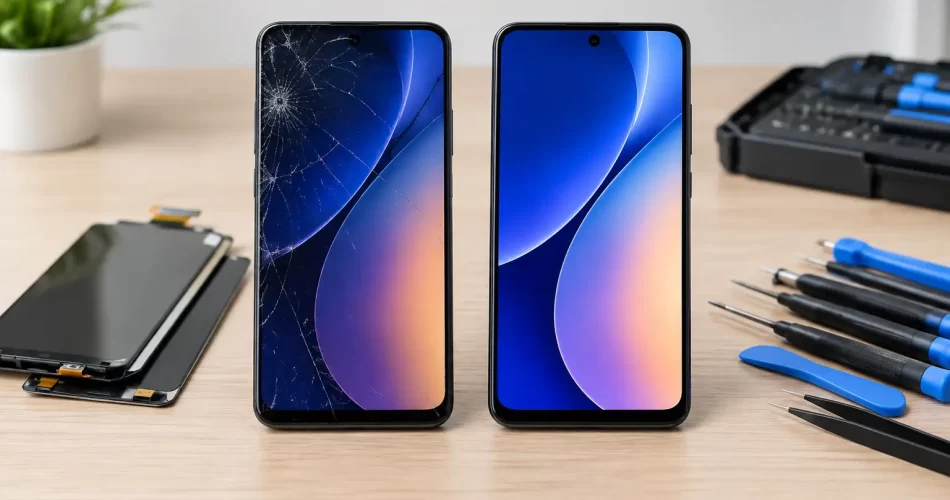
Samsung LCD versus OLED Repair: What Costs More?
A cracked Samsung screen can look like one simple problem, but the repair path changes sharply depending on the panel underneath. Samsung LCD versus OLED repair is not just a question of price. It affects display quality, battery use, fingerprint performance, durability and whether the replacement makes sense for the age and value of your phone.
If your Galaxy has gone black after a drop, is flashing green, has black ink-like patches, or still rings but shows no picture, the panel type matters. The right diagnosis prevents paying for the wrong repair and gets you back to work, messages, banking apps and photos faster.
Samsung LCD versus OLED repair: the key difference
LCD and OLED screens create an image in very different ways. An LCD panel uses a backlight behind layers of liquid crystal. The backlight stays on while the liquid crystals control what you see on screen. OLED panels use individual pixels that produce their own light. When an OLED pixel displays black, it can switch off completely.
That difference is why OLED-equipped Galaxy phones usually have deeper blacks, stronger contrast and slimmer displays. It is also why OLED damage can look more dramatic. A hard impact may leave the glass intact while damaging the panel below, producing green lines, white flashes, purple patches or a completely black display.
An LCD can also fail after a drop, but the symptoms are often different. You may see a bright white area, a dark blotch that spreads, coloured lines, no backlight, or a washed-out image. Both panel types can lose touch response when damaged, although touch faults are not always caused by the screen itself.
Samsung has used both technologies across different Galaxy generations and model ranges. Many premium Galaxy S, Note and Z-series devices use OLED displays, while some entry-level and older models use LCD. Do not assume based on the size of the phone or how expensive it looked when new. A technician should confirm the exact model and panel specification before quoting.
Why OLED repairs usually cost more
OLED panels are thinner, more complex and generally more expensive to source than LCD panels. On many Samsung models, the display is bonded to the touch layer and glass as one assembly. A proper repair commonly means replacing the complete screen assembly rather than trying to change only the cracked outer glass.
The quality of the part also changes the quote. A genuine service-pack display or premium-grade OLED is designed to match the original panel closely for brightness, colour, refresh rate and touch response. Lower-cost aftermarket OLEDs can be a reasonable option on some older phones, but quality varies. You may notice reduced brightness outdoors, different colour tuning, a thicker frame, weaker fingerprint recognition or less reliable touch around the edges.
A cheaper LCD conversion is sometimes offered for an OLED phone. It can lower the immediate repair price, but it comes with real compromises. The display may be thicker, less power-efficient and less vivid, with poorer black levels and potentially slower touch response. In-display fingerprint sensors may not work correctly, and the replacement can alter how the phone sits in its frame.
For a phone you use heavily for work, navigation, video calls or outdoor use in Darwin, the cheapest option is not always the best value. A screen that is hard to read in bright light or drains the battery faster can become frustrating very quickly.
What a proper Samsung screen repair involves
A quality repair is more than fitting a new panel. The phone needs to be opened carefully so the battery, flex cables, cameras, charging coil and motherboard connectors are not damaged. On newer Samsung devices, the screen may be removed from the front or the rear cover may need to come off first, depending on the model and repair method.
The old adhesive must be cleared, and the replacement screen needs to sit flush without pinched cables or pressure points. A display fitted under tension can fail early, lift at the edge or develop touch issues. The technician should test the screen before final sealing, including brightness, touch across the full panel, cameras, earpiece, charging, proximity sensor and fingerprint function where applicable.
Water resistance needs an honest conversation. Samsung phones may leave the factory with strong ingress protection, but opening any device breaks the original factory seal. Fresh adhesive helps restore protection against everyday dust and splashes, yet no repairer should promise the same factory water rating after a screen replacement. Keep a repaired phone away from pools, heavy rain and bathroom steam where possible.
At iSmashed, screen repairs are assessed by the actual fault, not just by the visible crack. That matters when a customer has a damaged display plus a battery issue, bent frame, charging fault or signs of water damage. Fixing the screen without identifying the underlying issue can lead to another failure soon after.
When the screen is not the real problem
A black screen does not always mean the display has failed. Your Samsung may be powered on but frozen, have a flat battery, a damaged charging port, a failed power circuit or a logic board fault. If the phone vibrates, rings, receives notifications or connects to a computer but has no image, the screen is a likely suspect. It still needs testing before parts are ordered.
Likewise, touch problems can come from more than cracked glass. Software faults, moisture under the display connector, frame damage and motherboard issues can all affect touch input. On foldable Samsung devices, hinge wear and internal flexible display damage add another layer of complexity. A crease that turns black, flickers or stops responding is not a simple outer-glass repair.
Water exposure is another reason not to delay. Corrosion can continue after the phone appears to dry out, especially around display connectors and board-level components. If the device has been wet and the screen begins flickering, showing lines or losing touch, switch it off if possible and arrange an assessment. Charging a wet phone can turn a repairable fault into a major board repair.
Choosing between repair, replacement and an LCD conversion
The right decision depends on the phone, the damage and what you need from it. Repair is often the sensible option when the device is otherwise reliable, receives security updates and has enough storage and battery life for your needs. A premium Galaxy phone with a damaged screen can still have plenty of useful life left after a quality display replacement.
Replacement may make more sense when the screen is damaged alongside a failing battery, bent chassis, rear-glass damage and motherboard faults. The combined cost can approach the value of a newer device. This is particularly relevant for older budget handsets where a good LCD replacement may cost a large percentage of the phone’s resale value.
An LCD conversion can suit a customer who needs an older OLED Samsung working again at the lowest possible cost and accepts the trade-offs. It is less suitable for someone who relies on the under-display fingerprint sensor, watches media on the phone, works outdoors or expects original-grade display performance. Ask what panel is being quoted, rather than assuming all screen replacements are equal.
Before handing over your phone, back up your data if the display still works. Remove your SIM if you prefer, know your screen lock code, and tell the technician about any previous repairs, water exposure or intermittent faults. Those details can save time and help protect your photos, contacts and work files.
A cracked screen is inconvenient enough. Get the panel type and the full condition of the phone checked properly, choose a repair grade that fits how you use the device, and you can make a clear decision without paying twice for the same problem.

Why Face ID Fails and What Your iPhone Is Telling You
Face ID is meant to be the fast part of using an iPhone: glance at the screen, unlock, pay, and move on. So when it stops recognising you before work, during a shift, or while travelling, it is more than an inconvenience. Understanding why Face ID fails can help you separate a simple settings issue from damage to the iPhone’s TrueDepth camera system – and avoid wasting time on fixes that cannot work.
Face ID does not use one ordinary front camera. It relies on several tightly matched components in the notch or Dynamic Island area, including an infrared camera, dot projector, flood illuminator and proximity sensors. If one part is blocked, misaligned, damaged or disconnected, Face ID may become slow, inconsistent or unavailable altogether.
Why Face ID Fails After a Drop, Repair or Water Exposure
A clean, uncracked screen does not guarantee the front sensor system survived a drop. Impact around the top edge of an iPhone can damage the delicate flex cables behind the display, shift a sensor bracket, or affect the TrueDepth camera assembly. The phone may otherwise work normally, making the Face ID fault seem random.
A common message is: “Face ID has been disabled” or “A problem was detected with the TrueDepth camera.” This usually points beyond a saved face scan or a software setting. It can indicate a hardware issue that needs proper diagnostics.
Water exposure is another major cause. Even a phone with a water-resistance rating can be affected after a hard drop, an ageing seal, steam exposure or contact with liquid around the earpiece. Corrosion can develop gradually on connectors and logic board circuits. Face ID might work immediately after getting wet, then fail days later once corrosion spreads.
Previous screen repairs also matter. The original front sensor and earpiece assembly must be handled carefully during a display replacement. These components are security-paired to the phone on many iPhone models. A damaged, incorrectly transferred or non-functioning paired component can leave Face ID unavailable, even if the replacement screen itself looks perfect.
That does not mean every third-party screen repair causes a Face ID problem. It means the quality of the repair process matters. The work requires careful disassembly, correct bracket placement, intact flex cables and testing before the phone goes back in your pocket.
Symptoms that suggest hardware damage
If Face ID only struggles in dim conditions, your screen may be dirty or a setting may need attention. But certain symptoms are stronger signs of a physical fault. These include repeated “move iPhone a little lower/higher” prompts, a Face ID setup that will not complete, a dead proximity sensor during calls, no display wake when lifting the phone, or a persistent TrueDepth camera error.
If the issue appeared immediately after a fall, water exposure, screen repair or battery repair, mention that when booking diagnostics. It gives the technician a useful starting point and can shorten the fault-finding process.
Quick Checks Before You Book a Face ID Repair
Start with the simple checks, especially if Face ID has only become unreliable rather than completely unavailable. Remove a thick screen protector or case that overlaps the notch or Dynamic Island. Wipe the top of the display with a clean, soft cloth. Makeup, sunscreen, dust and pocket grime can interfere with the sensors more than people expect.
Make sure your iPhone is held in portrait orientation and roughly at arm’s length. Face ID is designed to work with normal glasses and many sunglasses, but some heavily tinted or infrared-blocking lenses can interfere with the system. A cap, mask or helmet may also change what the phone can see, depending on your model and settings.
Then check Settings. Under Face ID & Passcode, confirm that iPhone Unlock is enabled. If the option is available, try setting up an Alternate Appearance for work PPE, a different hairstyle or regular glasses. You can also reset Face ID and enrol your face again.
A software update may fix bugs affecting camera services or biometric authentication. Restarting the iPhone is worth trying too. These steps are quick, safe and cost nothing.
However, do not keep resetting Face ID if enrolment consistently fails. It will not repair a torn flex cable, liquid damage or a failed sensor. More importantly, do not factory reset the device as a first response to a TrueDepth error. A factory reset can create an unnecessary data problem while leaving the original hardware fault untouched. Back up your iPhone first if it is still usable.
Check for screen protector and display alignment issues
Some poorly fitted protectors have a black border or adhesive pattern that reaches into the sensor area. A replacement display that is not seated correctly can also put pressure on the top assembly. If Face ID stopped directly after a screen replacement, return to the repairer promptly rather than pulling the display apart yourself.
The small flex cables near the earpiece are easy to damage. DIY attempts with metal tools, excessive heat or adhesive can turn a minor alignment issue into a more involved repair. Face ID is not a part of the phone to guess at.
When Face ID Needs Professional Diagnostics
A professional diagnostic process looks beyond the error message. The technician checks the front camera functions, proximity sensor, earpiece assembly, flood illuminator response, connector condition and signs of liquid ingress. On some faults, the issue is in the top display assembly. On others, it may be a damaged connector or logic board circuit that requires micro-soldering-level assessment.
The right repair depends on the model and what has failed. Some iPhones have different component pairing requirements, and a replacement part is not always a plug-and-play solution. A technician should be upfront if a repair is viable, what function can be restored, and whether there is a risk that the fault is board-level rather than limited to the screen assembly.
This matters because a cheap-looking fix can become expensive if it causes further damage. Replacing a screen when the actual fault is liquid corrosion on the board will not restore Face ID. Equally, replacing parts without transferring or preserving the original paired components can remove the possibility of restoring the feature.
At iSmashed, Face ID faults can be assessed alongside screen damage, charging issues, water damage and other symptoms. For Darwin customers relying on their phone for work or travel, proper diagnostics help avoid repeat repairs and long periods without a usable device. Where a board-level fault is involved, micro-soldering diagnostics may be the practical next step.
Can You Use an iPhone Without Face ID?
Yes. You can continue using a passcode for unlocking, App Store purchases and supported banking apps, although some apps may need their biometric settings updated. Apple Pay may also require your passcode more often. For many people, that is manageable for a day or two. For someone checking work messages all shift, authorising payments or accessing secure apps repeatedly, it gets frustrating fast.
Do not ignore a Face ID failure that follows water exposure. Even if the phone works with a passcode, internal corrosion can affect charging, audio, cameras or the display later. Switch the phone off if it has been heavily exposed to liquid, avoid charging it, and arrange an assessment as soon as possible.
Face ID failures are often the phone’s early warning that something around the front sensor system is not right. Try the sensible checks, back up what matters, and if the error remains, get the device diagnosed before a small fault turns into lost access, lost data or a bigger repair.