
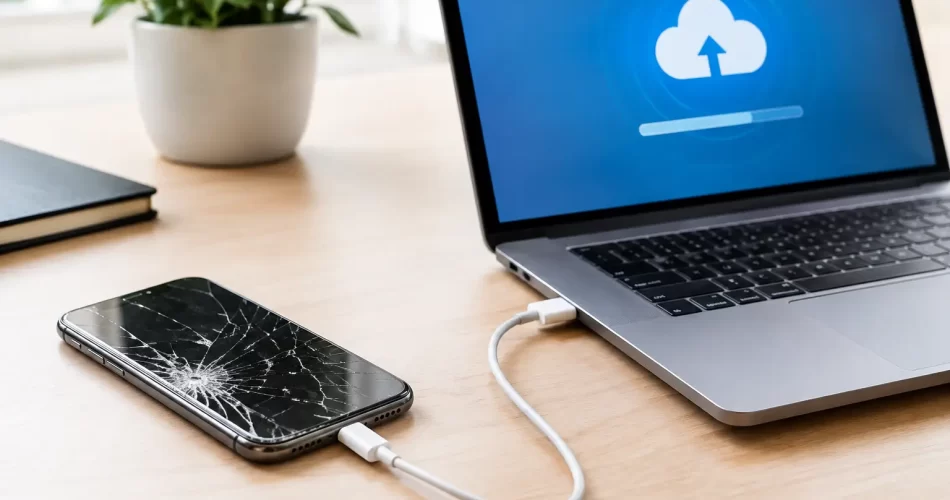
How to Back Up Broken Phones Before Repair
A smashed screen is stressful. A phone that will not charge, keeps restarting or has taken a swim is worse, because the repair is only half the problem. If your photos, work files, messages or two-factor authentication codes are still on it, knowing how to back up broken phones can save far more than the device itself.
The right approach depends on one thing: what still works. A phone with a cracked but visible display is very different from a water-damaged handset that will not power on. Do not keep trying random chargers, reset options or software updates. Those actions can turn a recoverable fault into a harder data recovery job.
First, work out what your broken phone can still do
Before backing up anything, check the basics without forcing the device. Does it power on? Can you see the display? Does touch still respond? Can it connect to Wi-Fi or mobile data? Can it unlock with Face ID, fingerprint or a passcode?
If the answer is yes to most of these, make a backup immediately. Keep the phone connected to power if it is stable, but stop if it becomes hot, the battery swells, the screen lifts, or there is any sign of smoke or a chemical smell.
If the phone has been exposed to water, do not charge it. Do not put it in rice, either. Rice does not remove corrosion from the charging port, battery connector or logic board. Power it off if possible and arrange professional assessment quickly. Time matters with liquid damage.
How to back up broken phones with a working screen
A working display gives you the best chance of a complete backup. Even if the glass is badly cracked, the phone may still be usable long enough to protect your data.
Back up an iPhone to iCloud
Connect the iPhone to reliable Wi-Fi and a charger, then open Settings, tap your name, select iCloud, then iCloud Backup. Choose Back Up Now and leave the phone alone until it finishes.
Check that you have enough iCloud storage first. Photos and videos can fill the standard allowance quickly. If the backup fails because storage is full, you may need to temporarily increase storage or make a computer backup instead.
Also check individual iCloud settings for Photos, Contacts, Notes, Messages and iCloud Drive. These services can sync separately from a full device backup. That is useful when time is tight, especially if your main concern is recent photos or contacts.
Back up an Android phone to Google
On Android, open Settings and search for “backup”. The exact menu differs between Samsung, Google Pixel, Oppo and other brands, but you are looking for Google backup or Samsung Cloud options.
Confirm that contacts, app data, call history, device settings and SMS messages are selected where available. Open Google Photos as well and check that backup is enabled. Leave the phone on Wi-Fi and power until the upload completes.
Samsung users may also have data synchronised to a Samsung account. Check both Google and Samsung services rather than assuming one backup covers everything. Some app data, secure folders and locally saved files need separate attention.
Make a computer backup as well
Cloud backup is convenient, but a local computer backup is often faster for a phone with a failing battery, unreliable Wi-Fi or a large photo library. It also gives you a second copy before repair.
For iPhones, connect to a Mac using Finder or a Windows PC using Apple Devices or iTunes, depending on the computer. Choose to back up all data to the computer. Select encrypted backup if you want saved passwords, Health data and Wi-Fi settings included. Keep the encryption password somewhere safe, because you cannot restore that backup without it.
For Android phones, connect by USB and unlock the device. Select File Transfer if prompted, then copy key folders such as DCIM, Pictures, Downloads, Documents and any work folders to the computer. This may not create a full app-and-settings backup, but it can rescue the files people miss most.
When the screen is black but the phone still turns on
A black display does not always mean the phone is dead. You may hear notifications, feel vibration, receive calls or see the computer detect it. In that case, the display, backlight, charge port or a board-level circuit may be the actual fault.
The problem is security. Modern iPhones and Android phones encrypt their storage. A computer cannot simply copy everything from a locked phone. You usually need to unlock the device and approve the computer connection first.
If touch works but you cannot see the screen, a temporary screen replacement may be the quickest path to a backup. For many common models, this is a practical repair that lets you unlock the phone, run the backup and decide whether you want a full repair afterwards.
Some Android phones support a USB-C display adapter, mouse or desktop mode. If the model supports video output and the device has already been unlocked, an external monitor may let you operate it. This is not universal. Many lower-cost Android models do not support video over USB-C, and a damaged USB port can prevent the method from working.
For iPhones, screen repair is generally the more reliable option. Do not repeatedly enter passcodes blindly. Too many failed attempts can disable the device or trigger a data erase setting if that option was enabled.
If the phone will not charge, boot or stay on
This is where DIY troubleshooting can cost you data. A phone that only shows a logo, boot loops, shuts down at random or refuses to charge may have a failed battery, damaged charge port, corrupted software or a logic board fault.
Start with a known-good cable and power adaptor, but avoid leaving the phone charging unattended if it has water damage or physical damage around the battery area. If it briefly turns on, prioritise a backup rather than installing updates, clearing storage or factory resetting it.
A boot-looping iPhone or Android may look like a software problem, but it can also be caused by hardware faults such as failing storage, a damaged power circuit, battery communication errors or board corrosion. A factory reset may get it running again, but it will erase local data. It should never be the first move when the files matter.
Professional diagnostics can identify whether the phone needs a battery, charge-port repair, display repair or micro-soldering work on the logic board. For data recovery, the goal is often not to make the phone perfect. It is to get it stable enough to boot, unlock and back up safely.
Water-damaged phones need a different plan
Water damage is unpredictable. A phone may appear fine for a day, then fail as corrosion develops under shields and connectors. The more you use it, charge it or heat it, the greater the risk of further damage.
If the phone is still working after liquid exposure, back it up over Wi-Fi immediately if it is safe to do so. Then power it down. Avoid charging through the port, using wireless charging as a workaround, opening the handset yourself or blasting it with a hairdryer.
A proper water-damage assessment involves opening the device, disconnecting power, inspecting for corrosion and cleaning affected areas where appropriate. If the board has damage around storage, power management or display circuits, micro-soldering may be needed before data can be accessed.
Do not forget the data outside your main backup
A device backup does not automatically guarantee every account is ready on your replacement phone. Before repair, check your password manager, email access and two-factor authentication setup where possible.
Authenticator apps can be the biggest trap. Some synchronise codes to an account, while others keep them only on the device unless you export or transfer them. If your screen still works, move authenticator access to another trusted device or save backup codes in a secure place.
Also look for files stored only inside apps. WhatsApp, Signal, banking apps, business apps, voice recorder apps and game saves all have different backup rules. If there is one conversation, document or job file you cannot lose, confirm it has been synchronised instead of assuming it is included.
Get the repair right before you lose the chance
A broken phone is not always a lost-data phone. Cracked screens, dead batteries, faulty charge ports, backlight failures and many boot issues can be repaired without wiping the device. The key is acting early and being clear that your priority is data preservation.
For Darwin customers, iSmashed can assess common phone faults through to board-level issues, including water damage, boot loops and logic board repair. Tell the technician if the phone contains irreplaceable files before any work begins, and do not approve a reset unless you understand what it will remove.
Your phone does not need to look perfect before you protect what is on it. If it still powers on, start the backup now. If it does not, stop experimenting and get a proper diagnosis while recovery is still possible.