
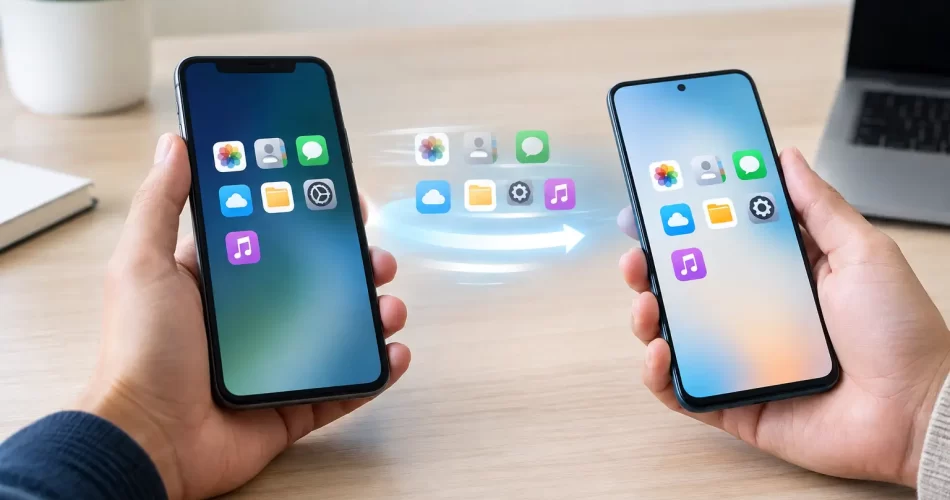
How to Transfer Phone Data Safely to a New Device
Your new phone is switched on, your old one is sitting beside it, and you need your banking apps, work contacts and family photos ready before the next shift. That is exactly when people rush the process and lose something they cannot easily replace. To transfer phone data safely, treat the changeover as a short job with two goals: copy what matters and keep the old phone untouched until you have checked the result.
Most transfers work well when both devices are healthy, charged and connected to reliable Wi-Fi. Problems usually start when a phone has water damage, a failing battery, a cracked display that only works sometimes, or storage that is already full. In those cases, a standard transfer may fail halfway through – and repeated attempts can put extra pressure on a struggling device.
Before You Transfer Phone Data Safely
Start by making space and making a backup. A direct phone-to-phone transfer is convenient, but it is not a substitute for a separate backup. If the transfer stalls, the backup gives you another way to restore your information.
Check that the old phone can connect to Wi-Fi, unlock normally and stay powered on without overheating or restarting. Update both phones if there is enough battery and storage available. Then plug them into power. A transfer can take minutes or several hours depending on your photo library, videos, messages and apps, so do not begin with 12 per cent battery while you are about to leave home.
Before you start, have these details available:
- your Apple Account or Google account password
- the passcode for the old phone and the PIN for your SIM
- access to the email address and mobile number used for verification codes
- any recovery codes for authenticator apps or password managers
- enough free storage on the new phone for your existing data
This preparation matters because not every app transfers the same way. Photos, contacts and messages may move across easily, while banking apps, work apps, digital wallets and two-factor authentication usually require you to sign in again. That is a security feature, not a fault.
If you are moving from iPhone to iPhone, the on-screen Quick Start process is normally the simplest option. Android to Android transfers are similarly guided during setup, often using a cable or the manufacturer’s transfer tool. Moving between iPhone and Android needs more planning because some data types, especially messages, app data and paid app purchases, may not carry over exactly.
Choose the Right Transfer Method
There is no single best method for every phone. The right choice depends on the condition of the old device, your internet connection and how quickly you need the new phone ready.
A direct cable transfer is usually the fastest and most reliable option for a large amount of data. It avoids relying on crowded Wi-Fi and is useful if you have years of photos or long videos. Use a quality cable that fits properly. A loose, damaged or charge-only cable can interrupt the process without warning.
A local wireless transfer is convenient when both devices are modern, charged and close together. Keep them on a stable home or workplace network, with Bluetooth enabled if prompted. Avoid public Wi-Fi at cafés, airports or hotels. It may be slow, unstable or poorly secured, and you do not want account sign-ins or personal data travelling across a network you do not control.
Cloud restoration is useful when the old phone is no longer available or cannot stay on long enough for a direct transfer. The trade-off is time. Your new device might appear ready quickly, but photos, app downloads and files can continue restoring for hours or days. Keep an eye on mobile data charges if the phone switches away from Wi-Fi.
For a damaged phone, do not assume a normal transfer is safe. A phone that constantly reboots, has a swollen battery, gets hot, or has been exposed to water may need assessment before it is connected to power or a computer. With liquid damage especially, charging it to complete a transfer can turn a recoverable issue into logic board damage.
Protect Your Accounts During the Move
Your phone holds more than photos and contacts. It is often the key to your email, bank account, social media, work systems, identity apps and digital wallet. Data loss is frustrating. Account takeover is worse.
Do the transfer somewhere private and keep both phones with you. Do not give your passcode, account password or one-time verification code to anyone who contacts you unexpectedly. A legitimate transfer process may ask you to enter these details on your own device, but it will not require you to read a code aloud over the phone.
Pay particular attention to authenticator apps. Some will restore from a backup, while others need each account moved manually. Before wiping the old phone, open the authenticator on the new phone and test a few critical logins, such as email, banking and work accounts. If you use a password manager, confirm that it is syncing correctly and that you can access its recovery options.
Digital wallets should be set up again on the new device. Cards are deliberately protected and may not move across automatically. Remove payment cards from the old phone only after they are active on the new one. The same caution applies to eSIMs. Some providers support an on-screen eSIM transfer, while others require a new activation through their app, website or store. Keep your old service active until calls, texts and verification codes are arriving on the new phone.
Check What Actually Arrived
A successful setup screen does not prove every file has transferred. Give yourself ten minutes to check the things you would notice missing at the worst possible time.
Make a call, send a text and test mobile data. Open your contacts and search for a few recent names. Check your latest photos, a video, notes, calendar entries and downloaded files. Open WhatsApp or your preferred messaging app and confirm recent conversations and attachments are present. If you use a work phone, test email, Teams, VPN access or any rostering app before relying on it for your next shift.
Then check the apps that protect or prove your identity. Sign into your bank, confirm your authenticator codes work, and make sure your email can receive a password reset message. If an app asks to verify your identity again, complete that step while the old device is still beside you.
Some content may continue downloading in the background. Leave the new phone on power and Wi-Fi overnight if you have a large library. Do not judge the transfer too early just because photo thumbnails have appeared – the full-resolution originals may still be restoring.
Do Not Wipe the Old Phone Yet
Keep the old phone for at least several days after the move. This is your safety net if an old message thread, a note, an app login or a photo folder did not come across. If the phone is being traded in or sold, erase it only when the new device has been fully tested and your mobile service has moved.
When you are ready, sign out of your Apple Account or Google account on the old phone first. Remove any eSIM or physical SIM only after confirming the new phone is receiving calls and texts. Turn off device tracking and activation lock as part of the proper erase process. A factory reset without signing out can leave the phone locked to your account and unusable for its next owner.
If you are passing the device to a family member, a full erase is still the right move. Deleting photos or uninstalling apps is not enough. A factory reset removes accounts, stored credentials and personal files properly.
When a Normal Transfer Will Not Work
A broken screen does not always mean your data is gone. If the phone still powers on and the display can be repaired temporarily or replaced, a standard transfer may be possible. The same goes for battery faults, charge-port issues and some boot loop problems. The priority is stabilising the device without risking the data stored on it.
More serious faults need a different approach. Water damage, failed updates, severe boot loops, no-power faults and logic board issues can prevent the phone from unlocking or communicating with another device. Modern phones encrypt their storage, so data recovery often depends on repairing the original board enough to boot the phone and enter the correct passcode. Replacing the phone alone will not automatically recover encrypted data from a dead device.
That is where specialist diagnostics and board-level work matter. At iSmashed, data recovery and micro-soldering are assessed around the condition of the device and the value of the data, rather than promising a one-size-fits-all fix. If the photos, business files or messages are irreplaceable, stop repeated charging and restart attempts, especially after water exposure, and get the phone checked promptly.
A careful transfer is less about pressing the first button you see and more about leaving yourself a way back. Keep the old phone intact, test the accounts you rely on, and only erase it when the new device has earned your trust.